Before you start
- At least one agreement exists.
What you'll learn
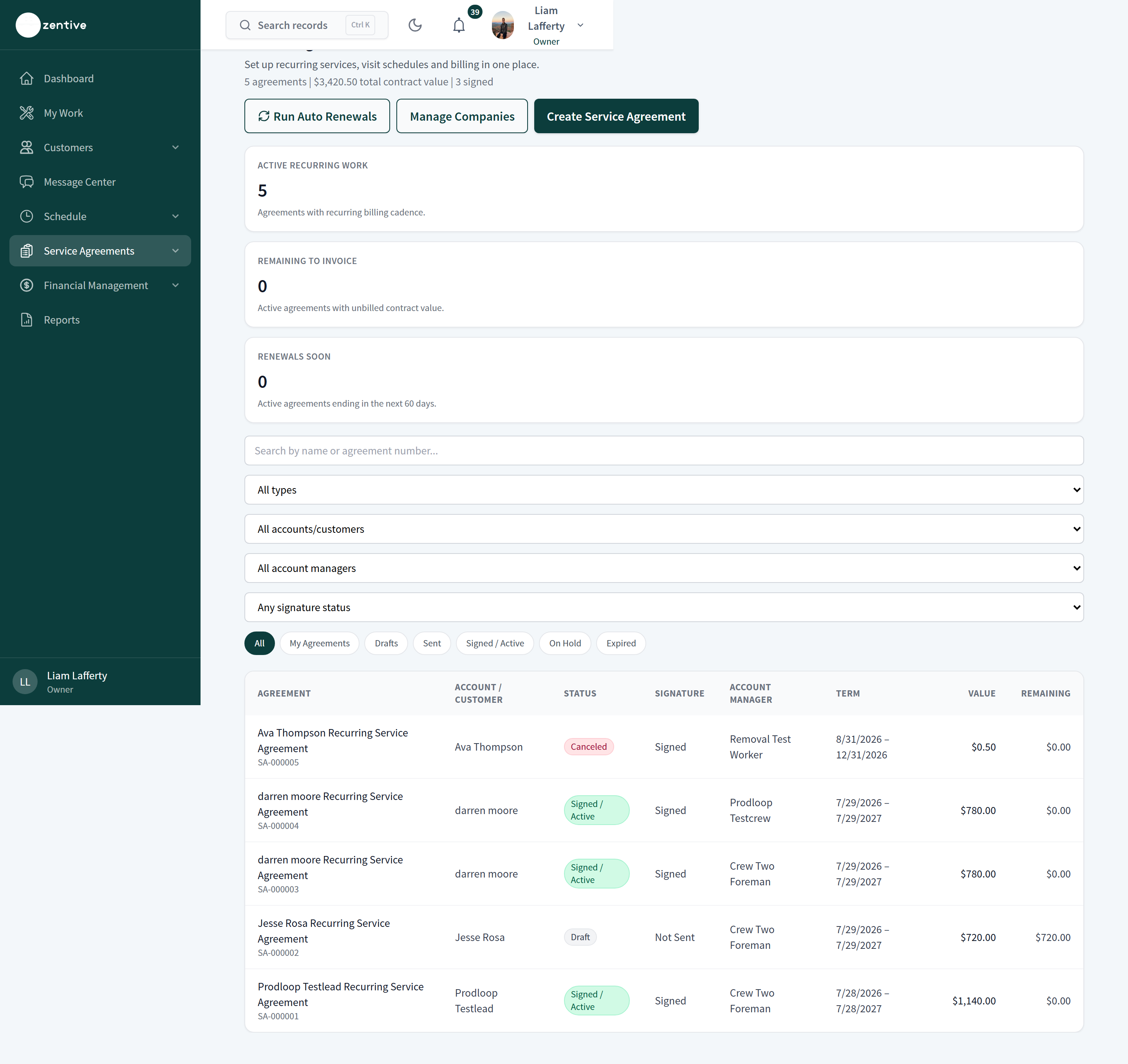
Service Agreements → Agreements lists every agreement with status (Draft, Sent, Signed / Active, On Hold, Expired, Canceled), signature state, account manager, term, value, and remaining, plus filters by type, customer, manager, and signature. Open one to manage it.
The agreement page
- 1
Header
Status and signature badges; Edit / Add Services, Place on Hold, Cancel Agreement; tiles for Contract total, Invoiced to date, Paid to date, Remaining value.
- 2
Overview
Account Manager Brief (manager, contacts, health, scope), Next Actions (Manage visit schedule, Review billing), How this agreement works (visit schedule, billing and review, renewal), term details, and Next Step: Send for Signature or the Signed PDF.
- 3
Properties & Services, Schedule
Lines per property with frequency and price; the visit calendar with the ability to add, move, skip, or cancel visits (canceled visits notify the customer).
- 4
Invoices, Profitability
Every invoice generated from the agreement with its status and autopay outcome; margin against tracked labor and materials.
- 5
Contacts, Documents / Signature, Requests, Activity
Billing and service contacts; the signed snapshot and any re-sends; customer requests from the portal (schedule change, pause, cancel, question); the audit trail.
Hold, cancel, renew
- 1
Place on Hold
Pauses visit generation and billing (for example a customer vacation) without ending the agreement. Resume from the same button.
- 2
Cancel Agreement
Ends the agreement, cancels future agreement visits, and notifies the customer. Invoices already issued stay; unbilled completed work can still be invoiced from the agreement's Invoices tab.
- 3
Renewals
Evergreen agreements continue until canceled. Auto-renew agreements roll into a new term (with the renewal price increase, if set) when you press Run Auto Renewals on the list, and appear under Renewals soon for 60 days before the end date. Manual renewal agreements move to Expired and need a new agreement or Duplicate.
Companies, Templates, My Workspace
- 1
Companies
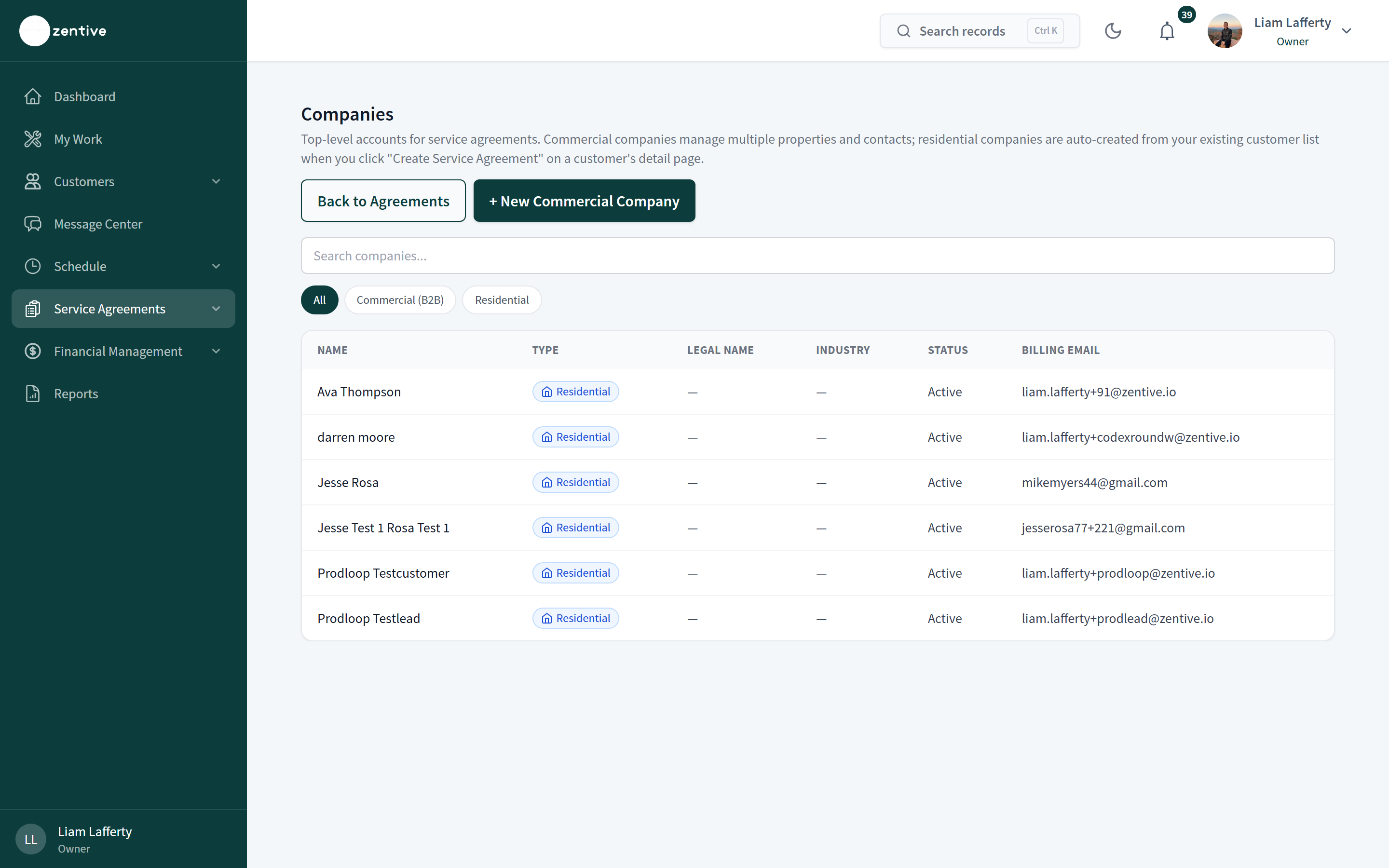
Service Agreements → Customers. Commercial companies hold multiple properties and contacts and are created with + New Commercial Company; residential companies are created automatically from the customer record when you start an agreement.
- 2
Templates
Service Agreements → Templates → + New Template saves boilerplate for contract types you close often (weekly lawn, quarterly HVAC). Creating an agreement From Template clones the defaults into a new draft.
- 3
My Workspace
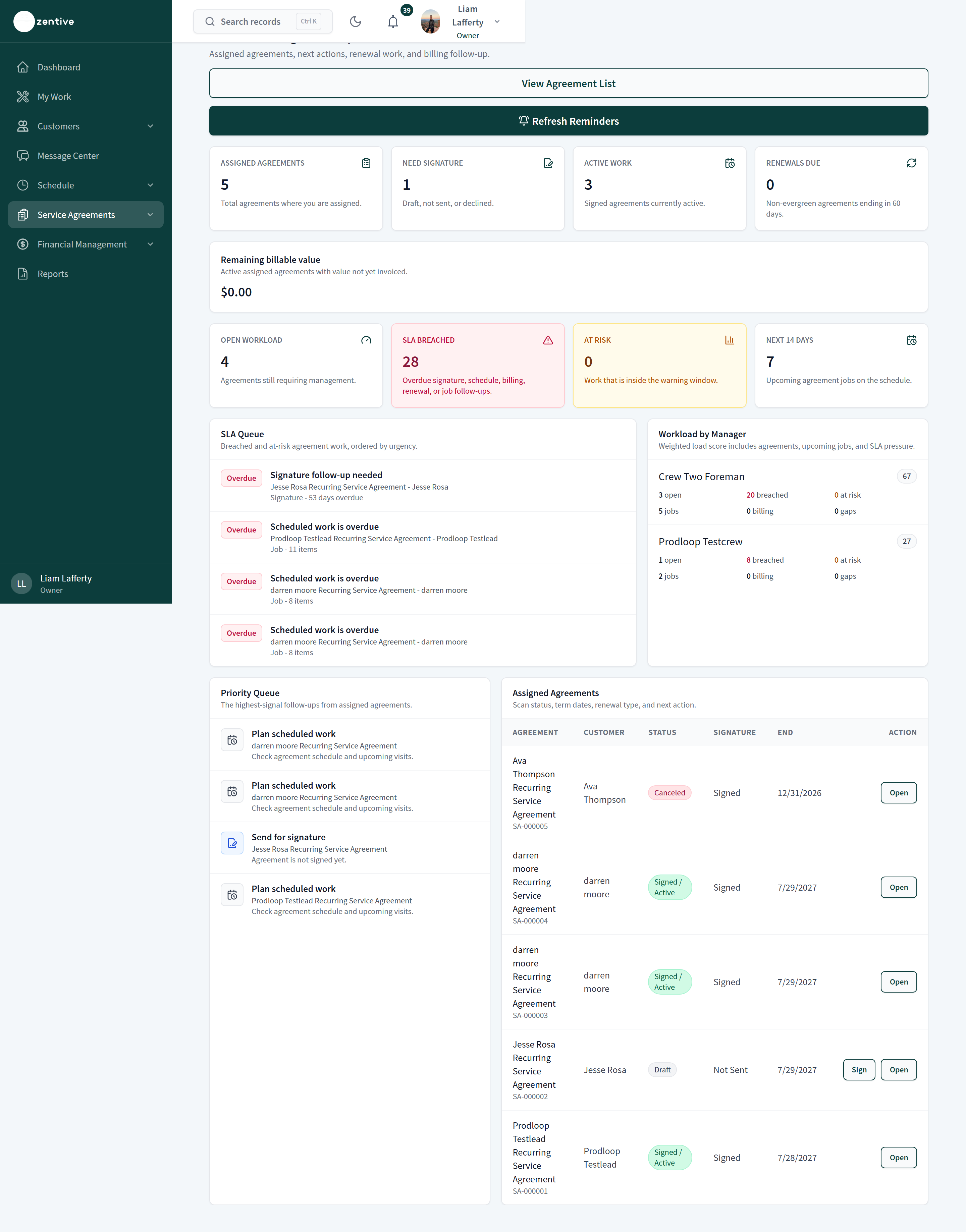
Service Agreements → My Workspace is the account manager's desk: assigned agreements, need-signature count, active work, renewals due, remaining billable value, an SLA Queue of overdue signature, schedule, billing, and renewal follow-ups, a Priority Queue, and Workload by Manager. Refresh Reminders re-runs the follow-up checks.
Was this helpful?
Contact Zentive support
Include your business name, account email, what you were trying to do, what happened instead, and a screenshot if possible. For billing, sync, or login issues, include the exact error message if shown.