Before you start
- You know your normal operating days, hours, and customer arrival-window policy.
What you'll do
You will make the calendar reflect how your business actually works before the office books more jobs.
Set the scheduling rules
- 1
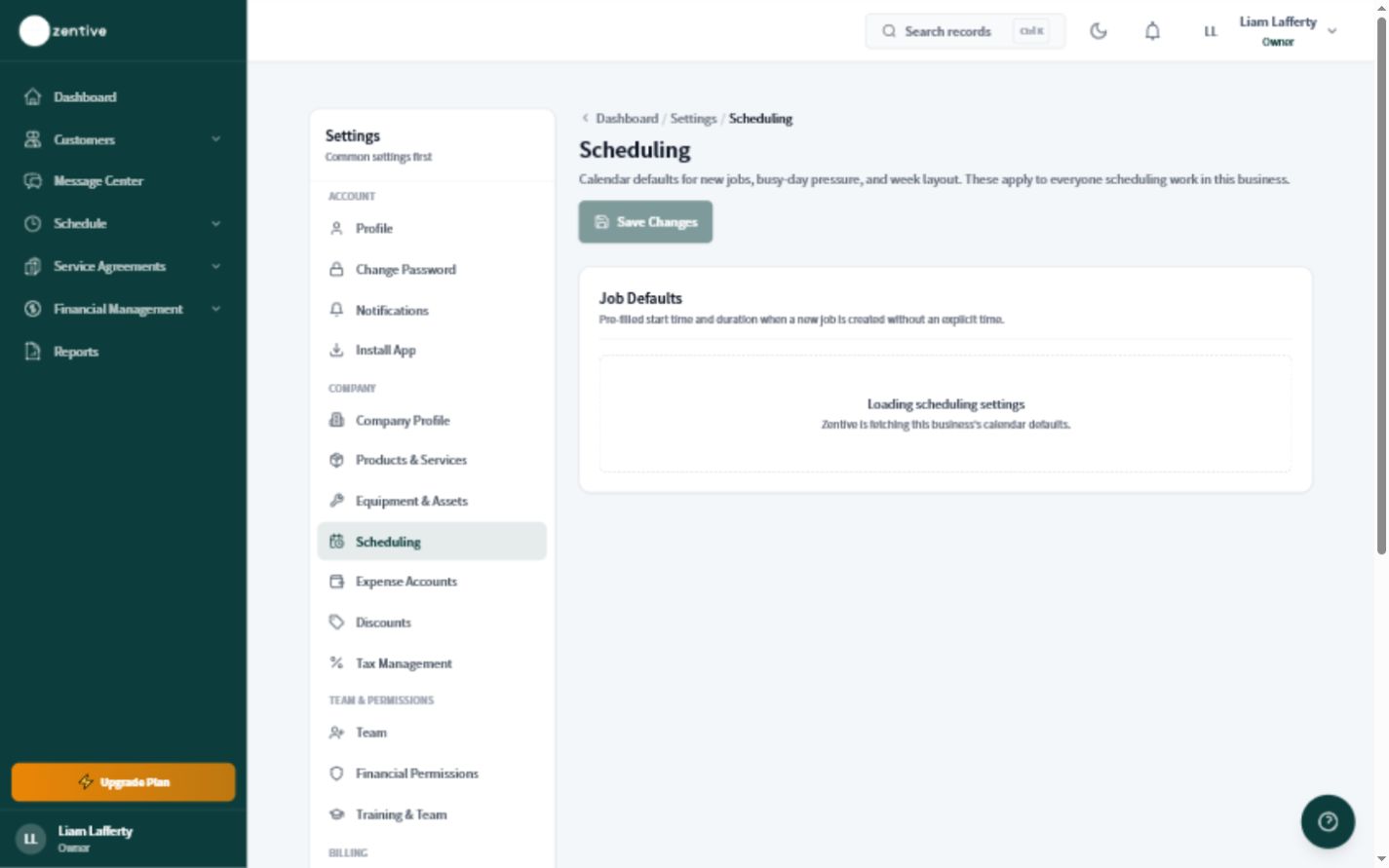
Open Scheduling
Go to Settings, then Scheduling.
- 2
Confirm the business time zone
Use the time zone where the work is performed. A wrong time zone can shift reminders and arrival windows.
- 3
Set working days and hours
Enter the normal days and hours crews can be scheduled.
- 4
Review arrival windows and travel time
Choose customer-facing windows that dispatch can realistically support.
- 5
Save and test
Create a test job and confirm its calendar time, customer message, and crew view all agree.
Change settings carefully during a busy season
Review upcoming recurring work after changing working hours or scheduling rules.
Was this helpful?
Still need help?
Contact Zentive support
Include your business name, account email, what you were trying to do, what happened instead, and a screenshot if possible. For billing, sync, or login issues, include the exact error message if shown.
Replies by emailLogin, billing, sync, and setup help
Email support