What you'll learn
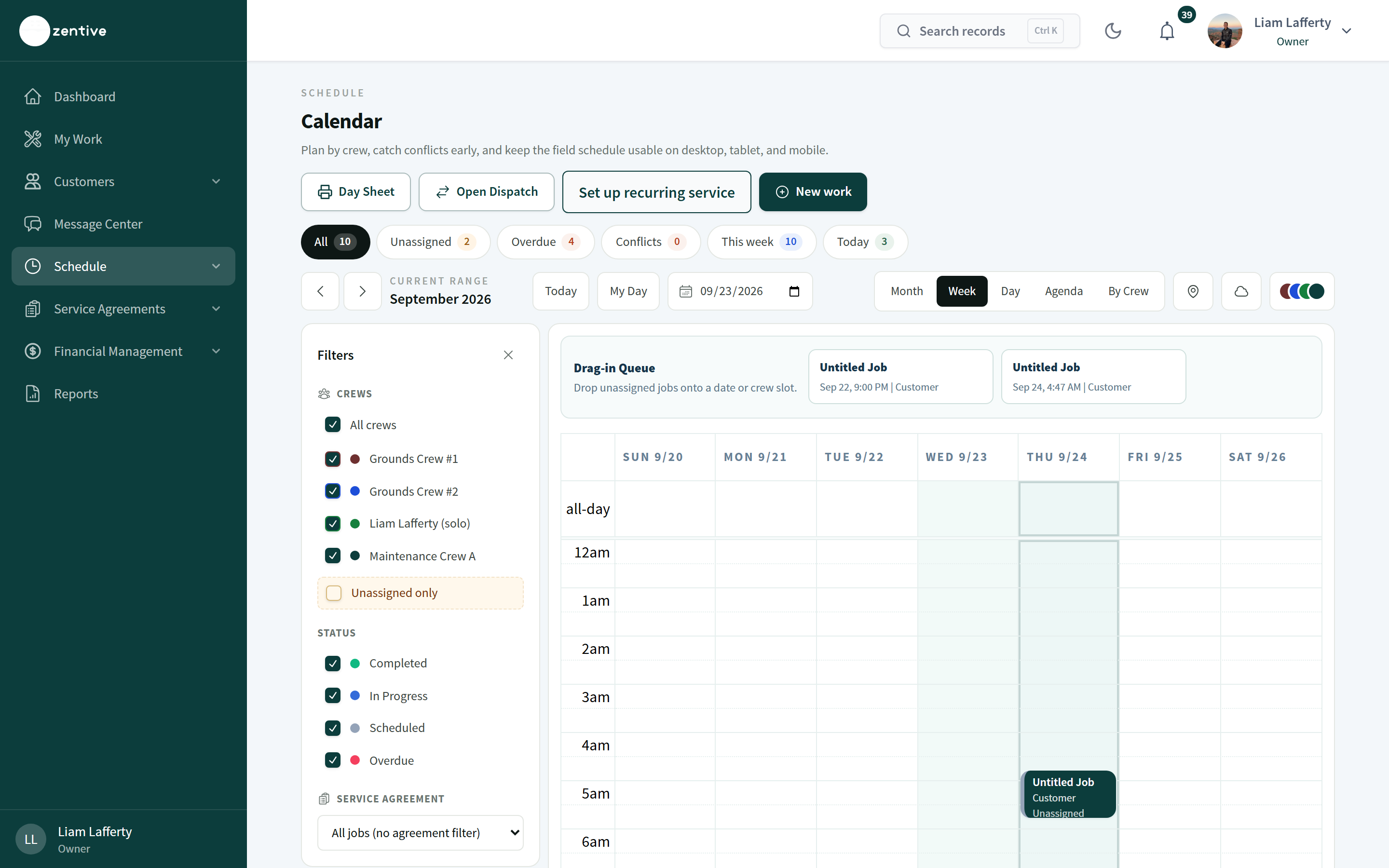
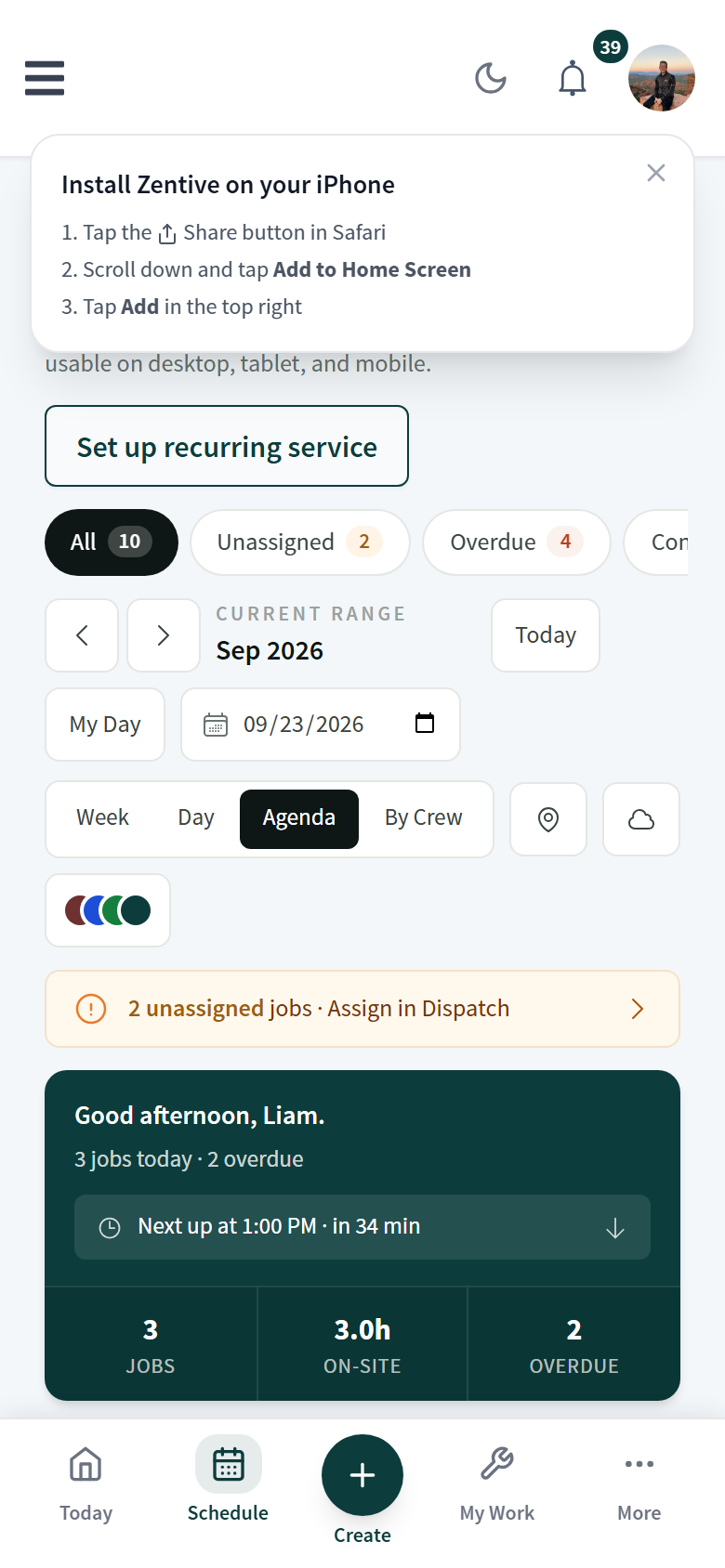
The Calendar (Schedule → Calendar) is where you look at the whole schedule, catch gaps and conflicts, and move work by dragging. The Dispatch Center is the same data organized for running today; use the Calendar for planning.
Getting around
- 1
Views
Month for the big picture, Week and Day for times, Agenda for a list, By Crew for one row per crew. My Day jumps to your own assigned work. The arrows and date picker move the range; Today returns to now.
- 2
Quick counts
The chips under the buttons count All, Unassigned, Overdue, Conflicts, This week, and Today. Click one to filter.
- 3
Filters
Crews (tick or untick each crew, or Unassigned only), Status (Completed, In Progress, Scheduled, Overdue), and Service agreement. Colors match each crew's color from Schedule → Crew.
- 4
Drag-in Queue
Jobs with no date or no crew wait here. Drop one onto a date, or onto a crew row in By Crew, to schedule and assign it in one move.
- 5
Move a job
Drag an item to another day or time. If the day changes, the customer's reminder updates and the job leaves any built route. Zentive warns before creating a crew conflict.
- 6
Quick-create
Click an empty day cell to start a job on that date with a default 9-to-5 window.
Printing the day
- 1
Day Sheet
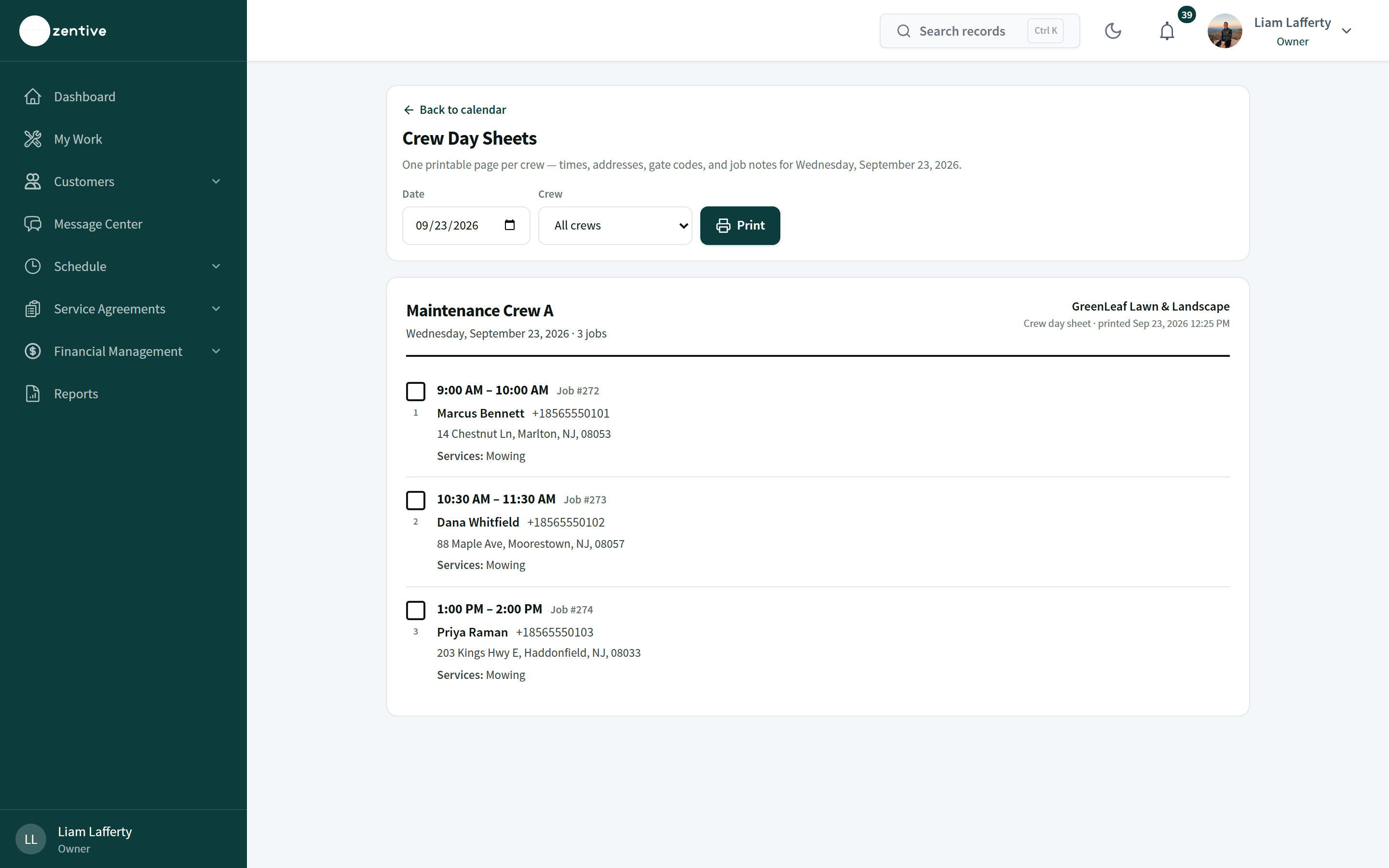
The Day Sheet button opens a printable page per crew for the selected day with each job's time, customer, address, services, and notes. Print it or save as PDF from the browser.
Was this helpful?
Contact Zentive support
Include your business name, account email, what you were trying to do, what happened instead, and a screenshot if possible. For billing, sync, or login issues, include the exact error message if shown.