What you'll learn
Approval is not just a status change. Zentive records the signature, creates the job, prepares the deposit invoice if there is one, and tells both of you. This page lists each step so nothing is done twice.
In order
- 1
1 · Signature recorded
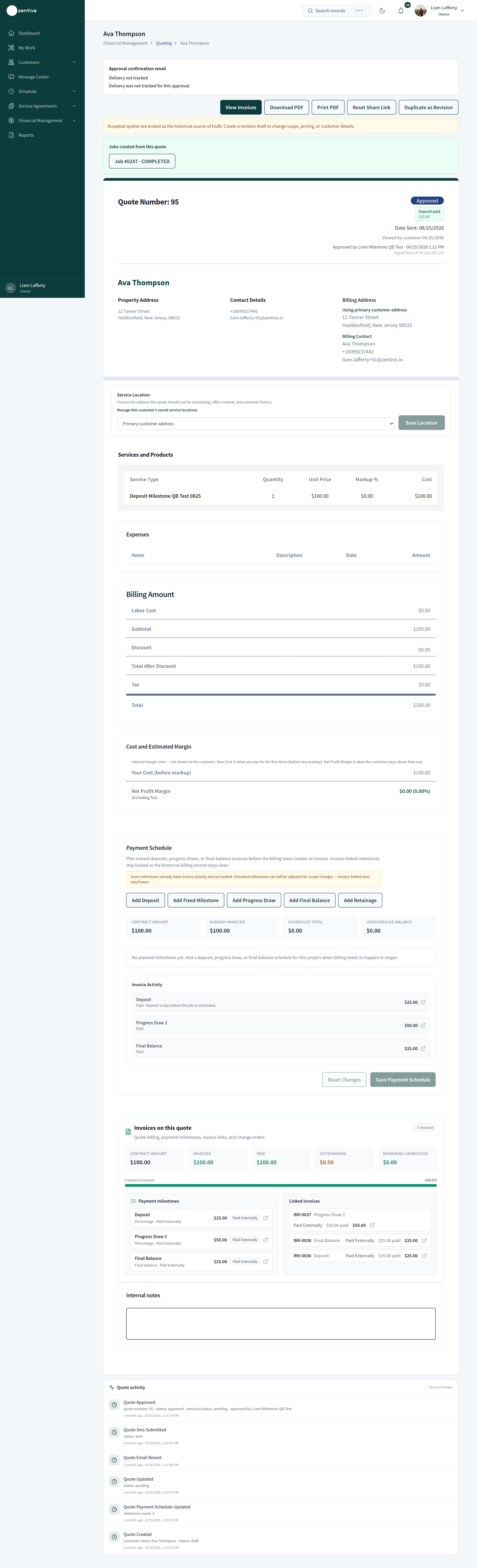
The customer types their legal name (and can draw a signature), which is stored with the timestamp, IP address, and city-level location. The quote page shows Approved by, the date, and Signed from IP. If Require customer signature on approval is off in Settings → Billing, a click-to-approve is recorded instead.
- 2
2 · Job created, ready to schedule
A job appears under Schedule → Jobs with the quote's customer, location, services, and price, unscheduled and with no crew. The quote page lists it under Jobs created from this quote. Open it to set the date, time, and crew. For multi-option quotes the job uses the option the customer picked.
- 3
3 · Deposit invoice (if you added one)
The deposit milestone becomes the first invoice and the customer is emailed a pay link. If Require deposit paid before scheduling is on, the job waits in Awaiting deposit until it is paid.
- 4
4 · Confirmation email to the customer
A branded confirmation with the quote PDF attached and a link to their portal. The Approval confirmation email panel at the top of the quote shows whether it was delivered; if it failed you get a Needs your attention item with a retry.
- 5
5 · Notification to you
Quote approved and Quote signed push or email, if turned on in Settings → Notifications.
- 6
6 · Quote locked
The accepted quote becomes read-only as the historical source of truth. Change scope with a change order on the job, or Duplicate as Revision.
Your next two clicks
Schedule the job (Schedule → Jobs → open it → set date and crew), then, when the work is done, bill it from the quote or the job. The Invoices on this quote panel keeps contract amount, invoiced, paid, and remaining uninvoiced in one place.
Was this helpful?
Contact Zentive support
Include your business name, account email, what you were trying to do, what happened instead, and a screenshot if possible. For billing, sync, or login issues, include the exact error message if shown.