Before you start
- The main customer record already exists.
What you'll do
You will add each service property to the existing customer and make the correct location easy to select on jobs.
Add a service location
- 1
Open the customer
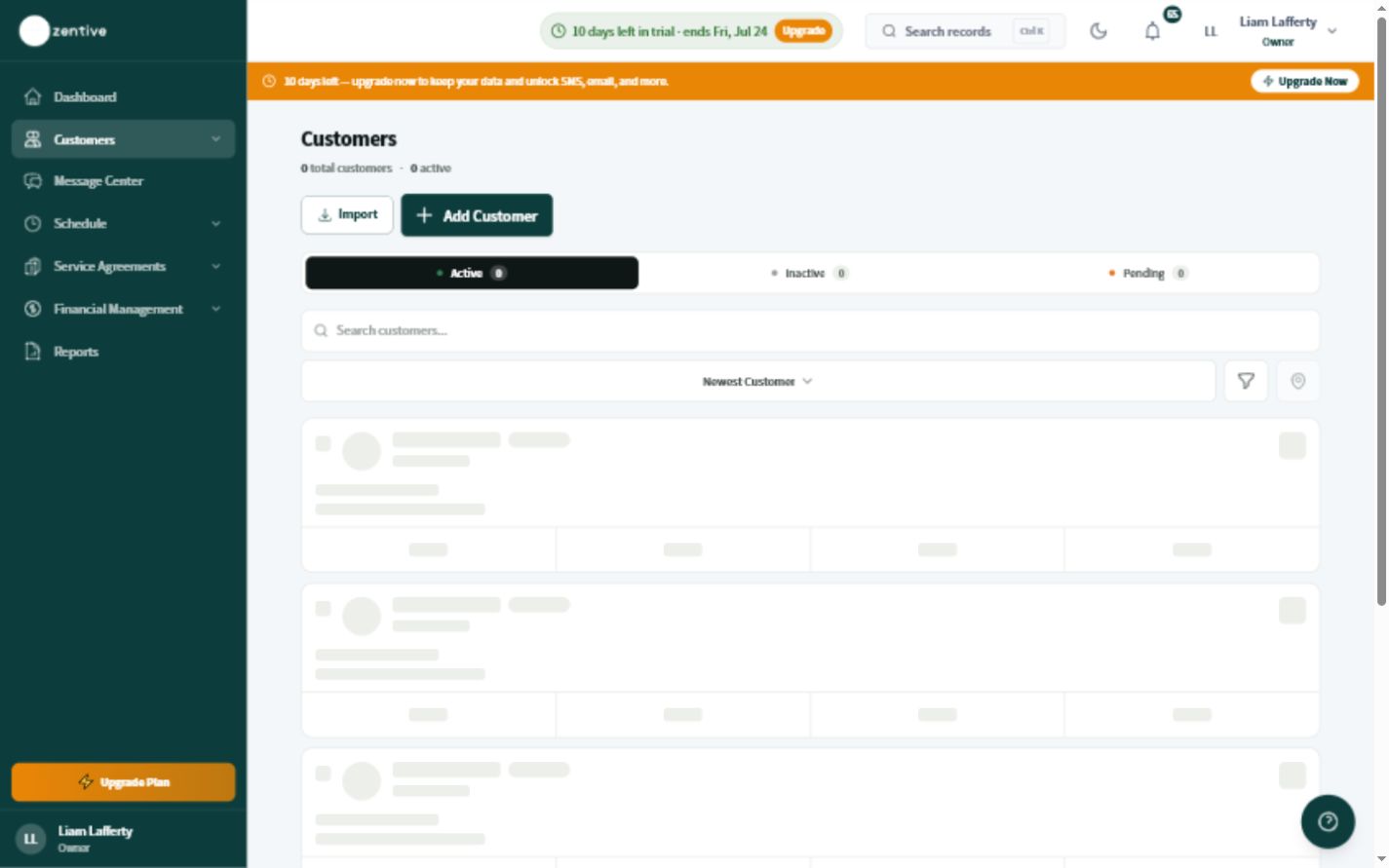
Go to Customers and open the correct customer record.
- 2
Open Locations
Choose the locations or addresses area, then select Add Location.
- 3
Enter the service address
Use the full street, city, state, and ZIP code. Confirm the map pin represents the real property.
- 4
Add useful access details
Record gate codes, parking instructions, building names, pets, or other safe arrival information.
- 5
Use the location on a test job
Create or open a job and confirm the correct property appears in the location selector and route.
Do not put access codes in customer-facing text
Store sensitive access details only in the internal field intended for your team.
Was this helpful?
Contact Zentive support
Include your business name, account email, what you were trying to do, what happened instead, and a screenshot if possible. For billing, sync, or login issues, include the exact error message if shown.