Before you start
- You have the customer's name and at least one reliable way to contact them.
What you'll do
You will create one accurate customer record that the office can safely use for quotes, jobs, invoices, and messages.
Add the customer
- 1
Open Customers
Choose Customers, then New Customer or Create Customer.
- 2
Enter the customer's real name
Use the person or company name your team will recognize in search and on documents.
- 3
Add contact information
Enter a working phone number and email. Confirm spelling before sending invitations or invoices.
- 4
Add the service address
Use the location where crews will perform work. Add gate codes or access instructions in the appropriate notes area.
- 5
Save and check for duplicates
Save, then search the name, phone, and email to make sure a second record was not created.
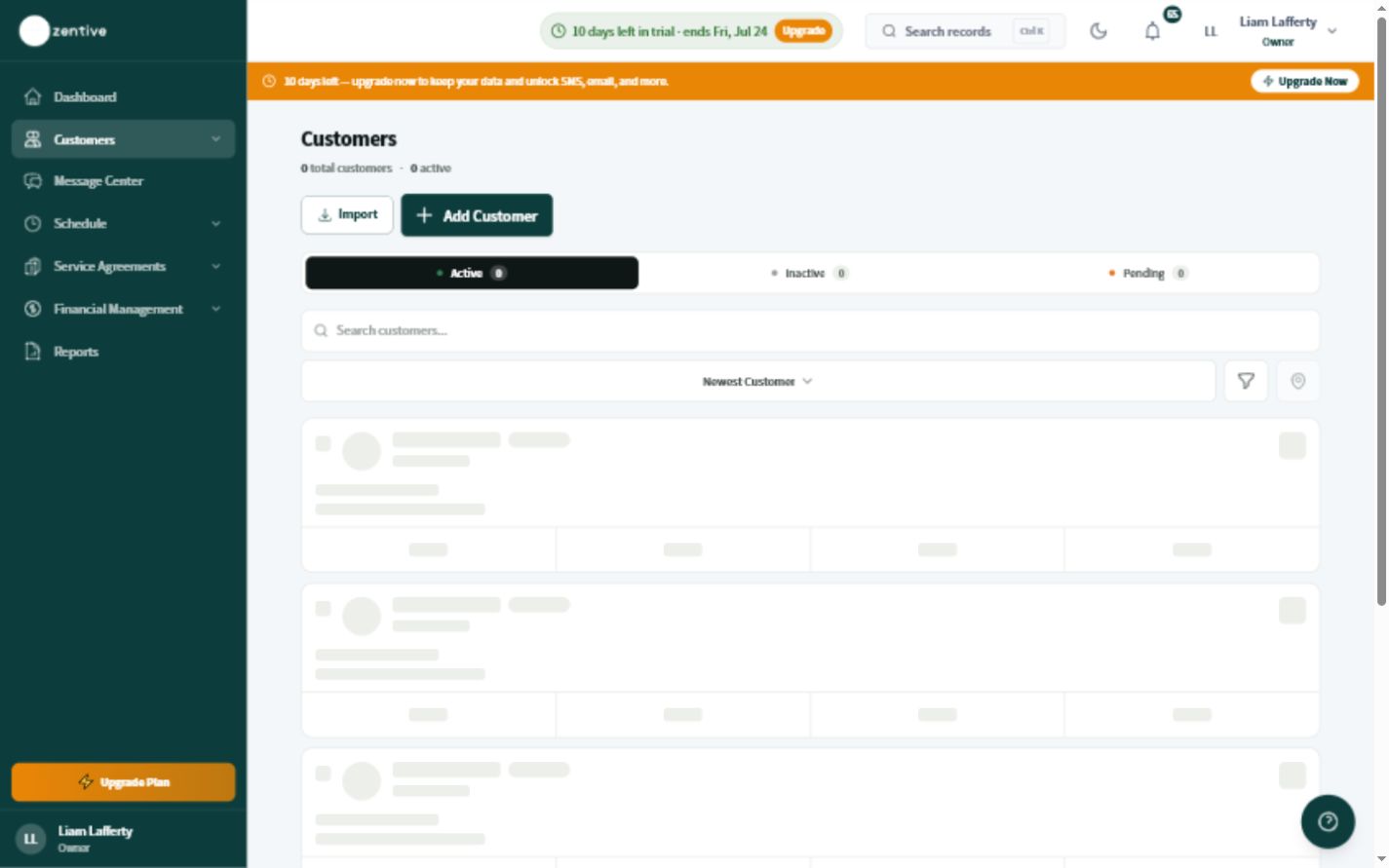
One customer can have more than one location
Add locations to the existing customer instead of creating duplicate customer records for every property.
Was this helpful?
Contact Zentive support
Include your business name, account email, what you were trying to do, what happened instead, and a screenshot if possible. For billing, sync, or login issues, include the exact error message if shown.