Before you start
- You know how to build a standard quote.
What you'll do
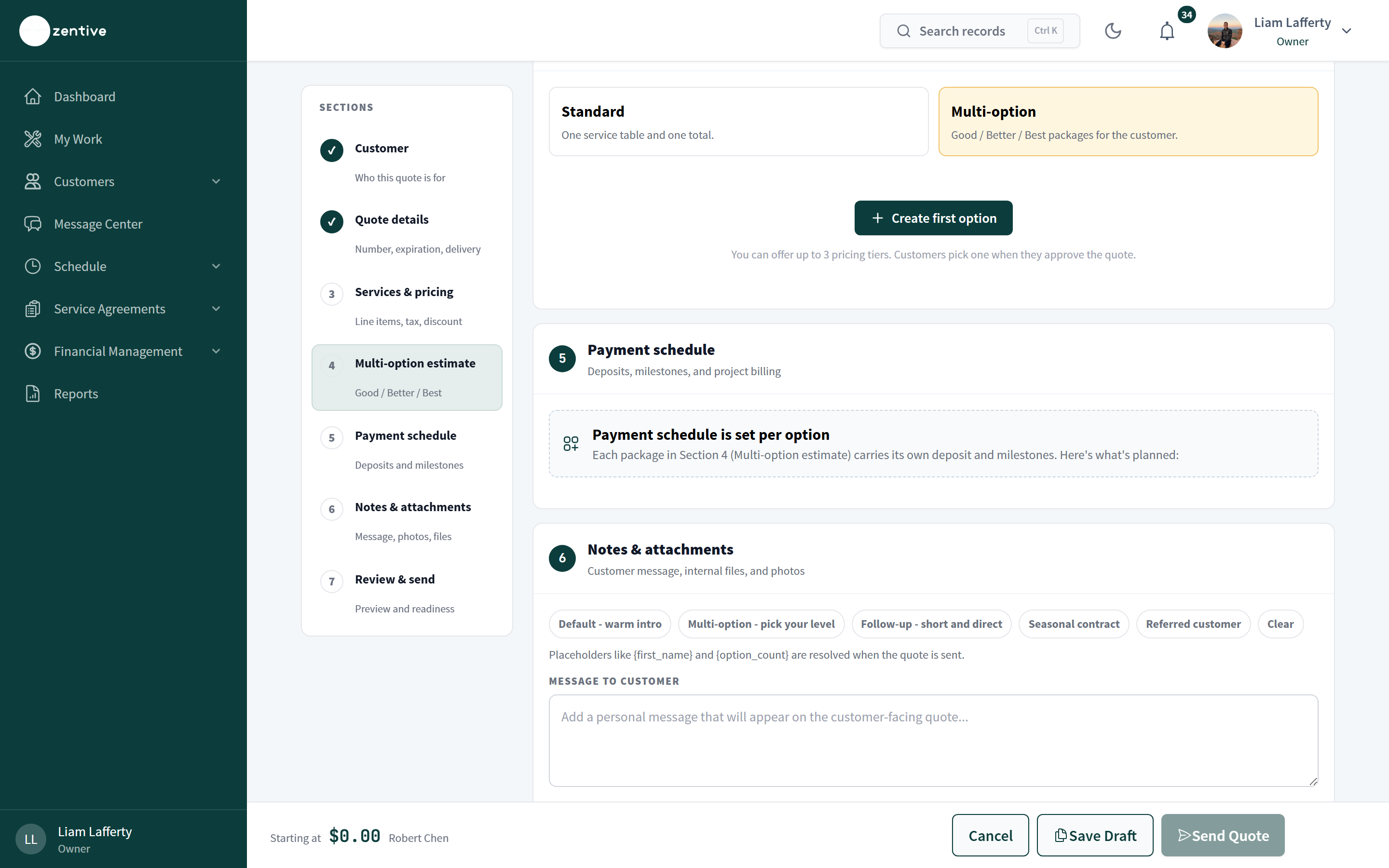
Instead of one table and one total, send the customer a choice. Each option carries its own line items, total, and payment schedule; the customer picks one on the approval page and the job and invoice follow that option.
Do this
- 1
Open section 4, Multi-option estimate
In the quote builder, click the Multi-option card (Good / Better / Best packages for the customer). The Standard card turns off.
- 2
Create first option
Name it (Good, Better, Best, or your own names such as Basic Patio / Patio + Lighting / Full Backyard), add services, expenses, and a price. Repeat with + Add option; you can offer up to three.
- 3
Set a payment schedule per option
Section 5 changes to Payment schedule is set per option. Open each package to add its deposit or milestones; a bigger package can carry a bigger deposit.
- 4
Write the message
The Multi-option – pick your level template explains the choice to the customer; {option_count} is replaced with the number of options.
- 5
Review and send
The footer shows Starting at with the lowest option price. Readiness requires at least one option with a service and a total.
What the customer sees
The approval page shows the options side by side with their totals. The customer selects one, signs, and approves. The quote list and the quote page then show the selected option, and the job created from the quote uses that option's services and price. Declining or asking for changes works the same as a standard quote.
Was this helpful?
Contact Zentive support
Include your business name, account email, what you were trying to do, what happened instead, and a screenshot if possible. For billing, sync, or login issues, include the exact error message if shown.