Before you start
- A quote has been sent.
What you'll learn
Most quotes need a nudge or a change before they are approved. Zentive handles the nudges for you and gives you one safe way to change a quote after the customer has seen it.
Automatic follow-ups
- 1
The cadence you chose when sending
Light, Standard, or Aggressive schedules an email and a text after the quote goes out. Standard also expires the quote after 14 days. Off sends nothing.
- 2
The Quote follow-up channel
Message Center → Automated Messages → Quote follow-up holds the wording. Edit message changes it for every quote.
- 3
They stop automatically
As soon as the customer approves, declines, requests changes, or the quote expires.
Manual resend and tracking
- 1
Resend from the list
Financial Management → Quoting → row actions: the envelope resends by email, the speech bubble resends by text, the copy icon duplicates the quote.
- 2
See whether it was opened
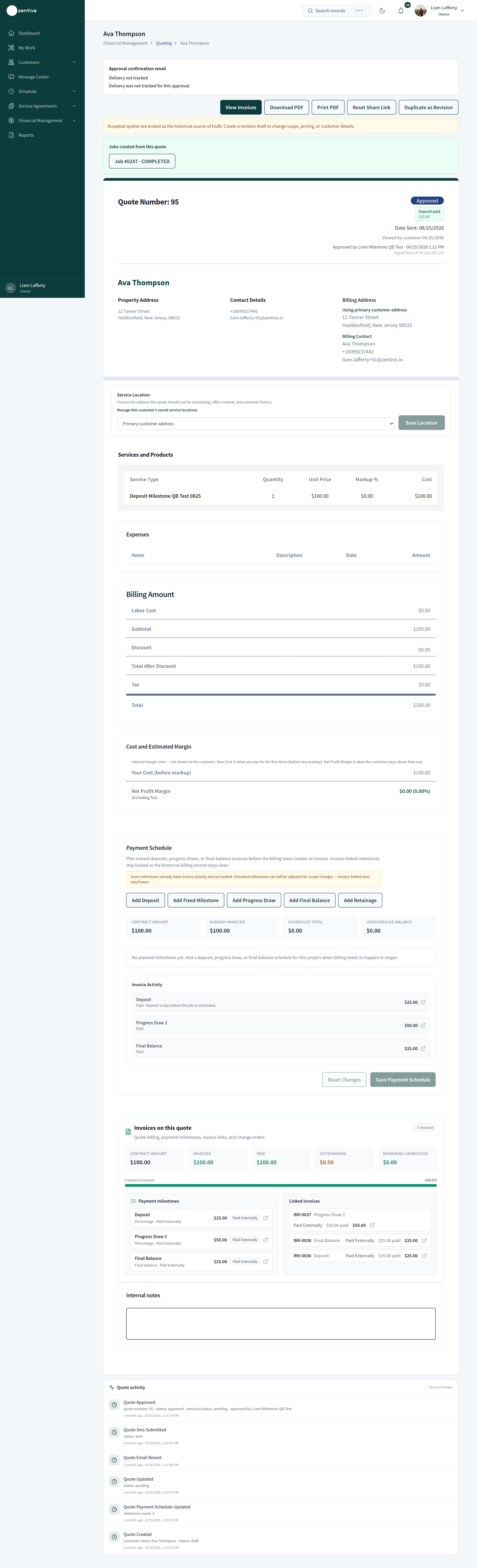
Open the quote. Viewed by customer with the date appears under the quote number once the customer opens the link. Quote activity at the bottom lists every send, view, edit, and status change.
- 3
Reset Share Link
Invalidates the old link and creates a new one, for example if a quote was forwarded to the wrong person.
Declines, change requests, and revisions
- 1
Declined
The customer's decline reason and notes show on the quote and the row moves to the Declined filter. Duplicate it, adjust, and send again.
- 2
Changes requested
The customer's message shows on the quote. Edit the quote while it is still Pending and resend.
- 3
Accepted quotes are locked
An accepted quote is the historical record and cannot be edited. Use Duplicate as Revision to create a new draft with the same content, then send that; or use a change order on the job for added work.
- 4
Approve on the customer's behalf
If the customer approves by phone or in person, open the quote and use Mark as Approved. The record notes that you approved it, not the customer.
Expiration is your friend
A quote with an expiry date gives the customer a reason to act. If a good customer misses the date, duplicate the quote and send it with a fresh date rather than extending the old one; the activity log stays clean.
Was this helpful?
Contact Zentive support
Include your business name, account email, what you were trying to do, what happened instead, and a screenshot if possible. For billing, sync, or login issues, include the exact error message if shown.