Before you start
- The employees you want to add already exist in Zentive.
What you'll do
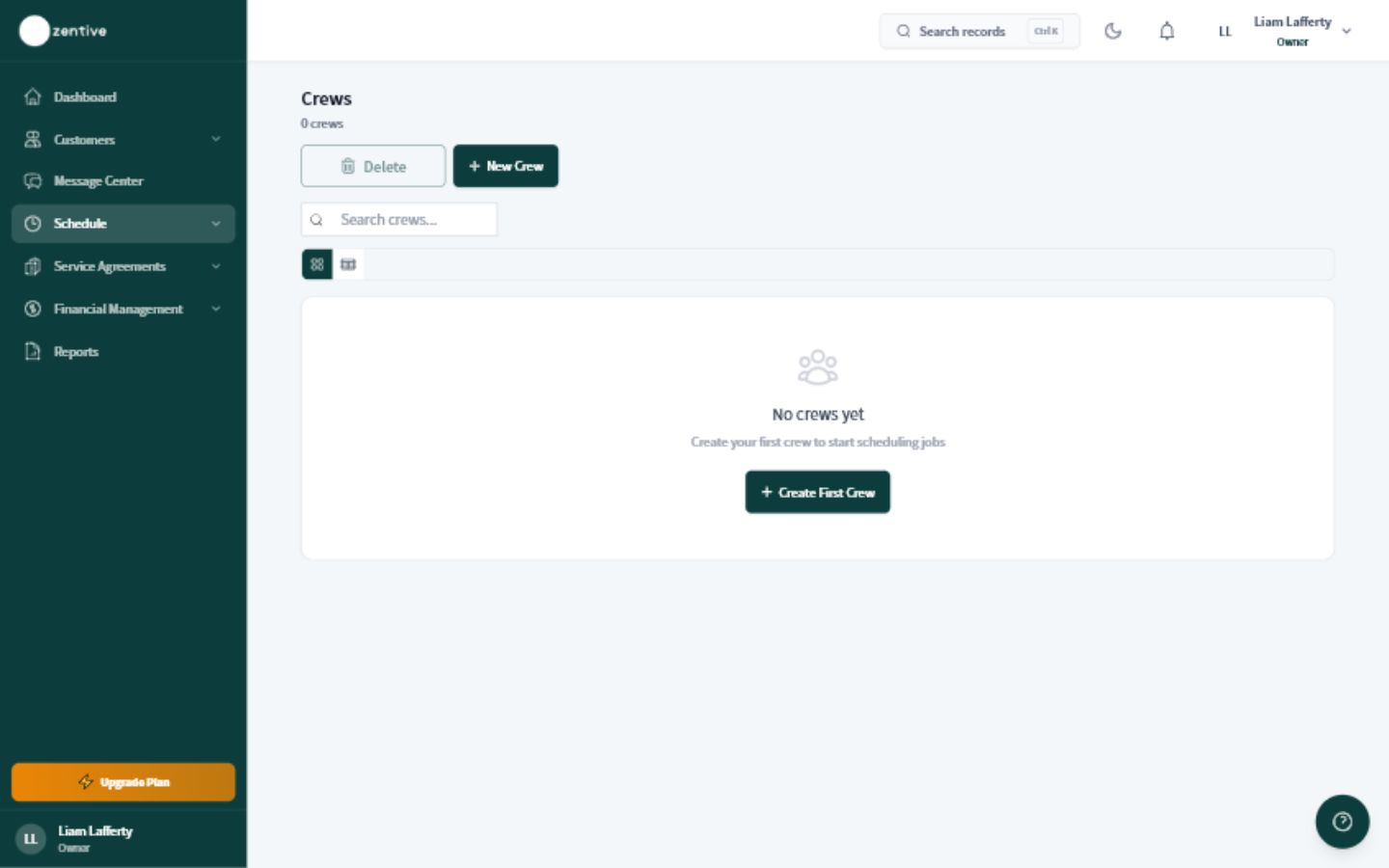
You will create a crew that can be assigned to jobs and routes as one working team.
Build the crew
- 1
Open Crews
Go to Schedule, then Crews.
- 2
Choose Add Crew
Use a clear name your dispatcher and technicians will recognize.
- 3
Add the crew members
Select the employees who normally work together and choose the crew lead or foreman when required.
- 4
Save the crew
Save, then open the crew again to confirm the right people are listed.
- 5
Test an assignment
Assign one upcoming job to the crew and confirm it appears in dispatch and in the crew app.
Keep crews accurate
- Remove former employees promptly.
- Update temporary or seasonal crew changes.
- Confirm a crew lead before assigning routes.
Was this helpful?
Still need help?
Contact Zentive support
Include your business name, account email, what you were trying to do, what happened instead, and a screenshot if possible. For billing, sync, or login issues, include the exact error message if shown.
Replies by emailLogin, billing, sync, and setup help
Email support