Before you start
- You are signed in as an owner or office administrator.
What you'll do
You will create an employee record and choose the access that matches the person's real job.
Add an employee
- 1
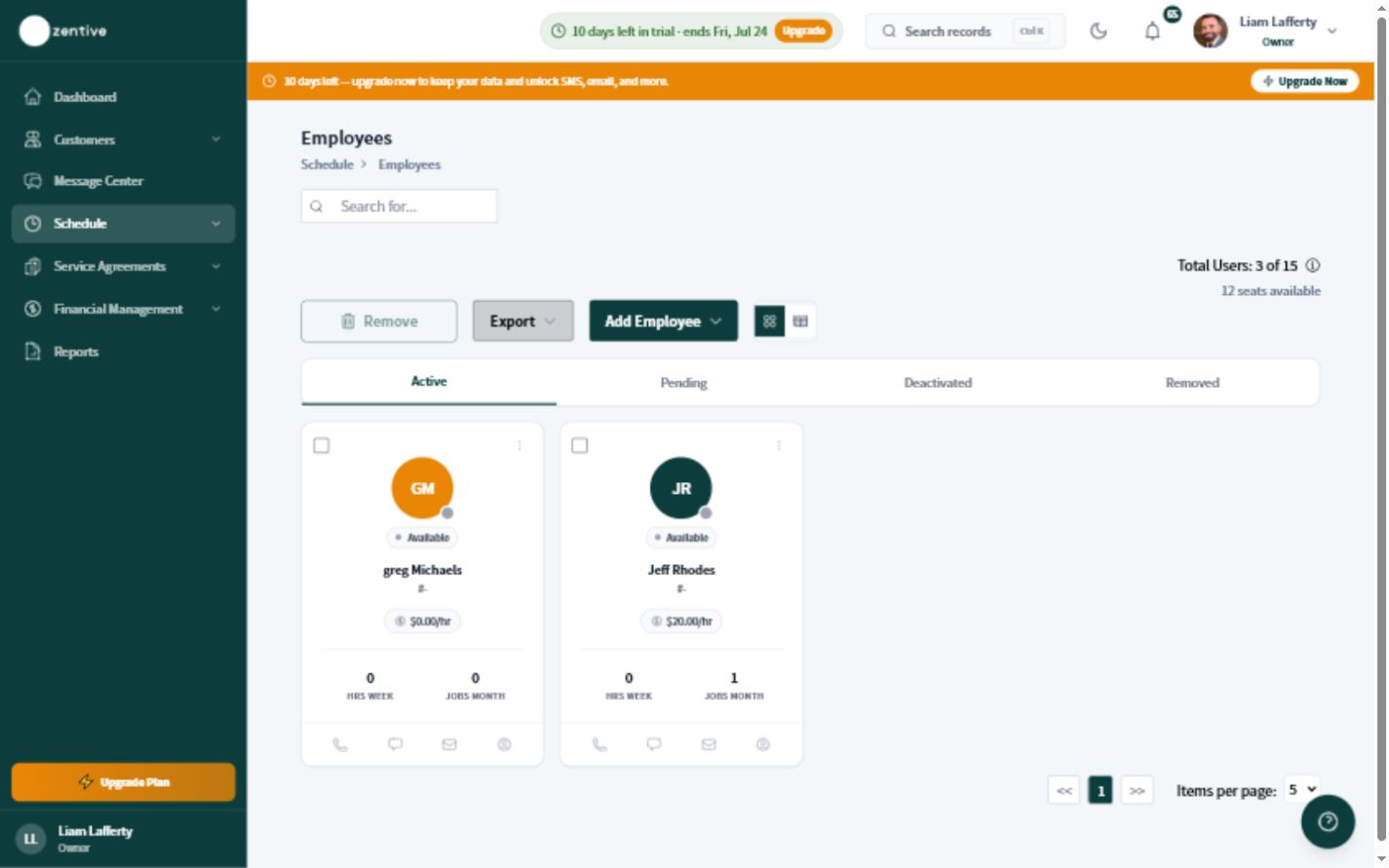
Open Employees
Go to Schedule, then Employees.
- 2
Choose Add Employee
Enter the employee's real name, phone number, and work email. Use an address they can access.
- 3
Choose the right role
Give field workers crew access. Only give office or financial access to people who need it.
- 4
Save and send the invitation
Save the record, then confirm the employee receives the invitation and creates a password.
- 5
Test the account
Ask the employee to sign in and confirm they can see the correct jobs or office tools.
Use one account per person
Shared employee accounts make timesheets, job history, and accountability unreliable.
Was this helpful?
Contact Zentive support
Include your business name, account email, what you were trying to do, what happened instead, and a screenshot if possible. For billing, sync, or login issues, include the exact error message if shown.