What you'll learn
Where everything lives, and the one shortcut that skips the menus entirely.
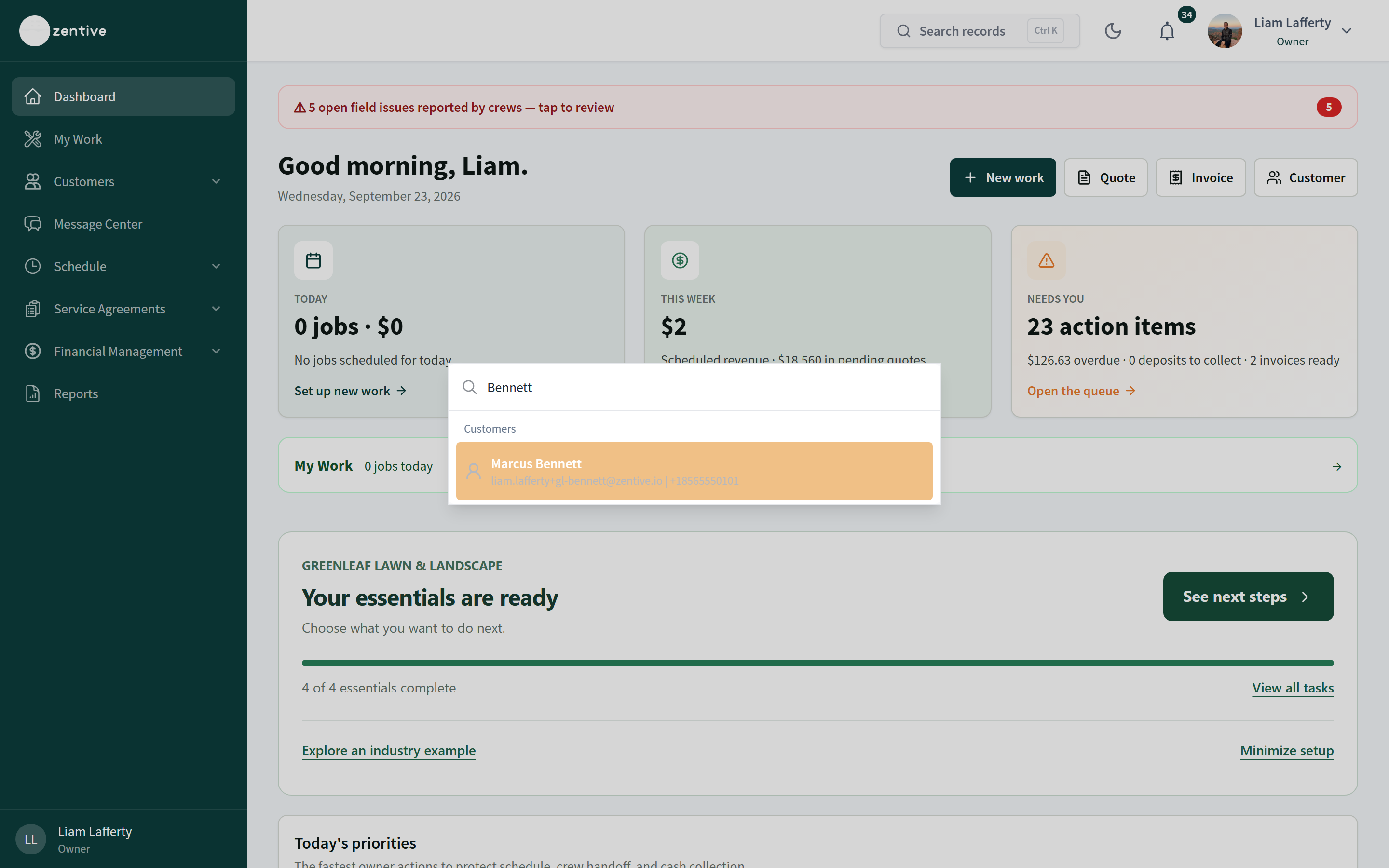
Search records
- 1
Press Ctrl+K (⌘K on Mac) or click Search records at the top
Type a name, address, phone, email, job number, quote number, or invoice number.
- 2
Pick a result
Results are grouped by Customers, Jobs, Quotes, Invoices, and Leads. Use the arrow keys and Enter, or click. Esc closes the search.
The sidebar, top to bottom
- Dashboard — today, this week, needs you, priorities, cashflow.
- My Work — jobs assigned to you personally, in the crew view.
- Customers — Customer List (records, import, map view) and Lead Management (pipeline).
- Message Center — Inbox, Broadcasts, Automated Messages, Settings.
- Schedule — Calendar, Dispatch Center, Employees, Jobs, Crew, Job Log, Routing.
- Service Agreements — My Workspace, Agreements, Customers (companies), Templates.
- Financial Management — Quoting and Invoicing.
- Reports — the reports hub, grouped Money, Sales, Jobs & Crews, Customers.
- Your name (top right) — Settings, dark mode toggle (moon icon), notifications bell, sign out.
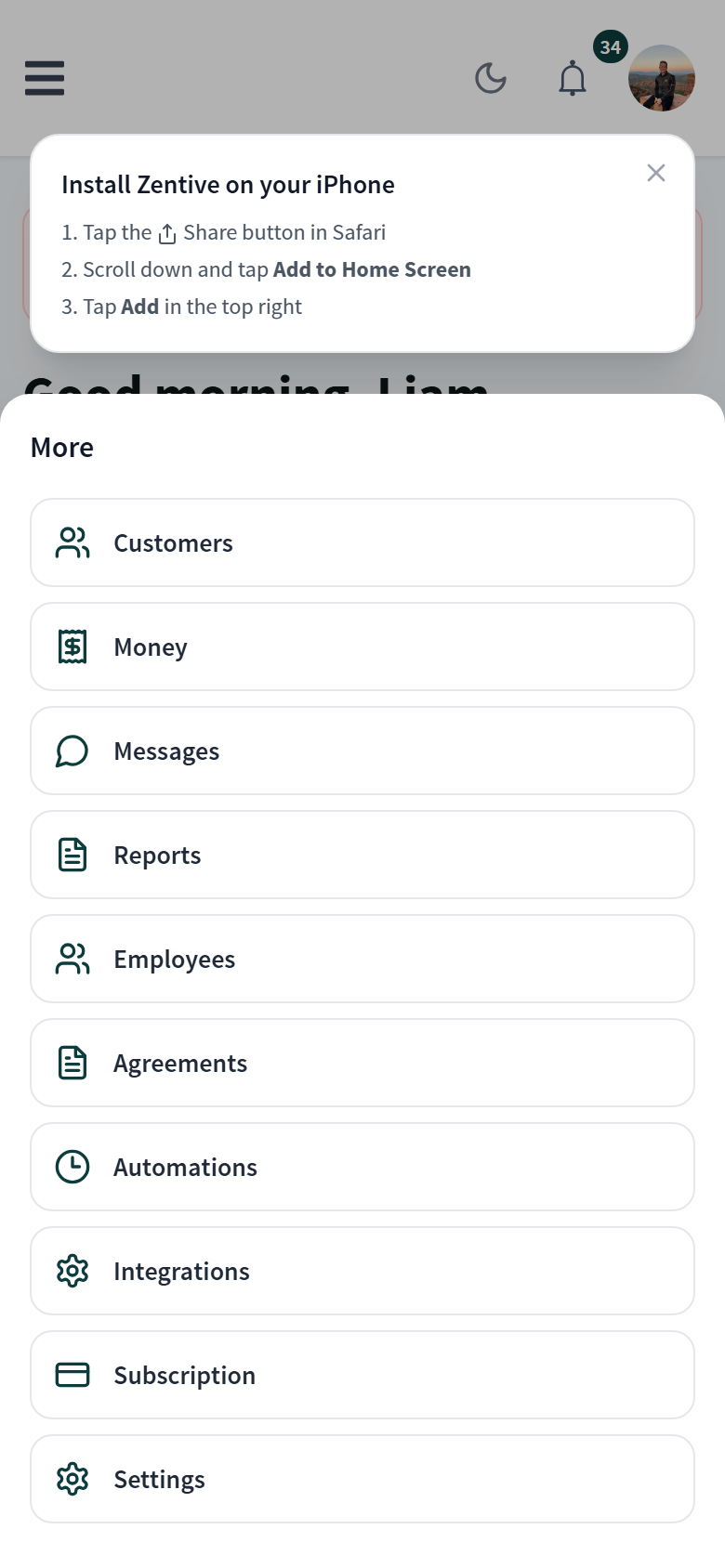
On a phone
- Bottom bar: Today, Schedule, Create (+), My Work, More.
- Create (+) offers New work, New Customer, New Quote, New Invoice.
- More holds Customers, Money, Messages, Reports, Employees, Agreements, Automations, Integrations, Subscription, Settings.
- The menu icon at the top left opens the full sidebar.
Dark mode
The moon icon next to Search records switches the whole app to dark mode for you only. Screenshots in this help center use light mode.
Was this helpful?
Still need help?
Contact Zentive support
Include your business name, account email, what you were trying to do, what happened instead, and a screenshot if possible. For billing, sync, or login issues, include the exact error message if shown.
Replies by emailLogin, billing, sync, and setup help
Email support