What you'll learn
Once an invoice is sent, Zentive tracks whether it arrived, reminds the customer on a fixed schedule, flips it to past due on its own, and tells you when something needs a hand.
Delivery
- 1
Channels
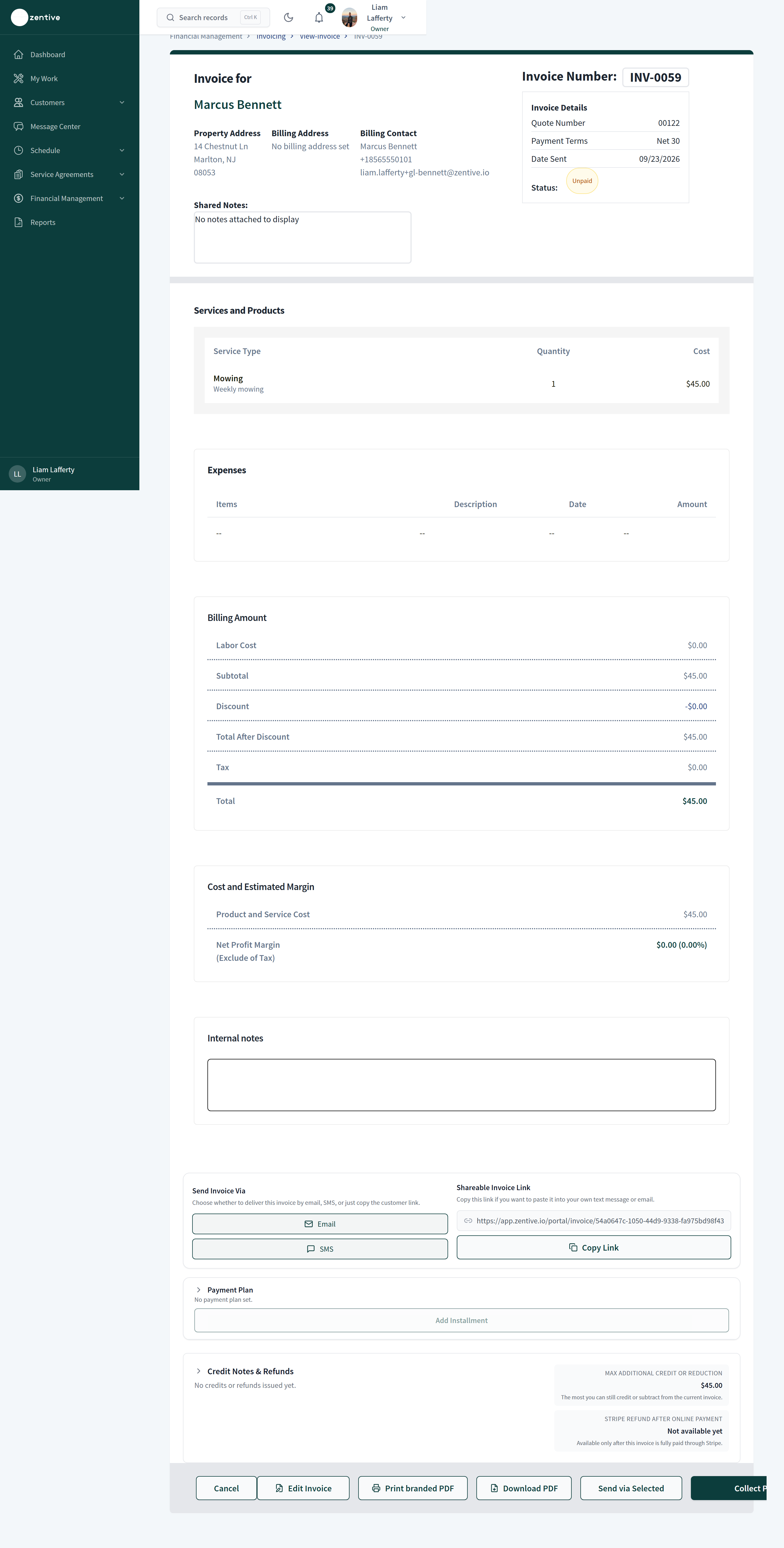
Email, SMS, or both, chosen in the builder. Every invoice also has a Shareable Invoice Link (Copy Link on the invoice page) you can paste into your own message.
- 2
Delivery status
The invoice page shows when the email and text were sent and whether they were delivered. A bounced email (bad address) raises Invoice email bounced under Needs your attention on the dashboard: fix the customer's email on their record and press Email on the invoice to resend.
- 3
Resend
On the invoice page use Email, SMS, or Send via Selected. Each send is logged; the customer sees the same link each time.
Reminders and past due
- 1
Automatic reminders
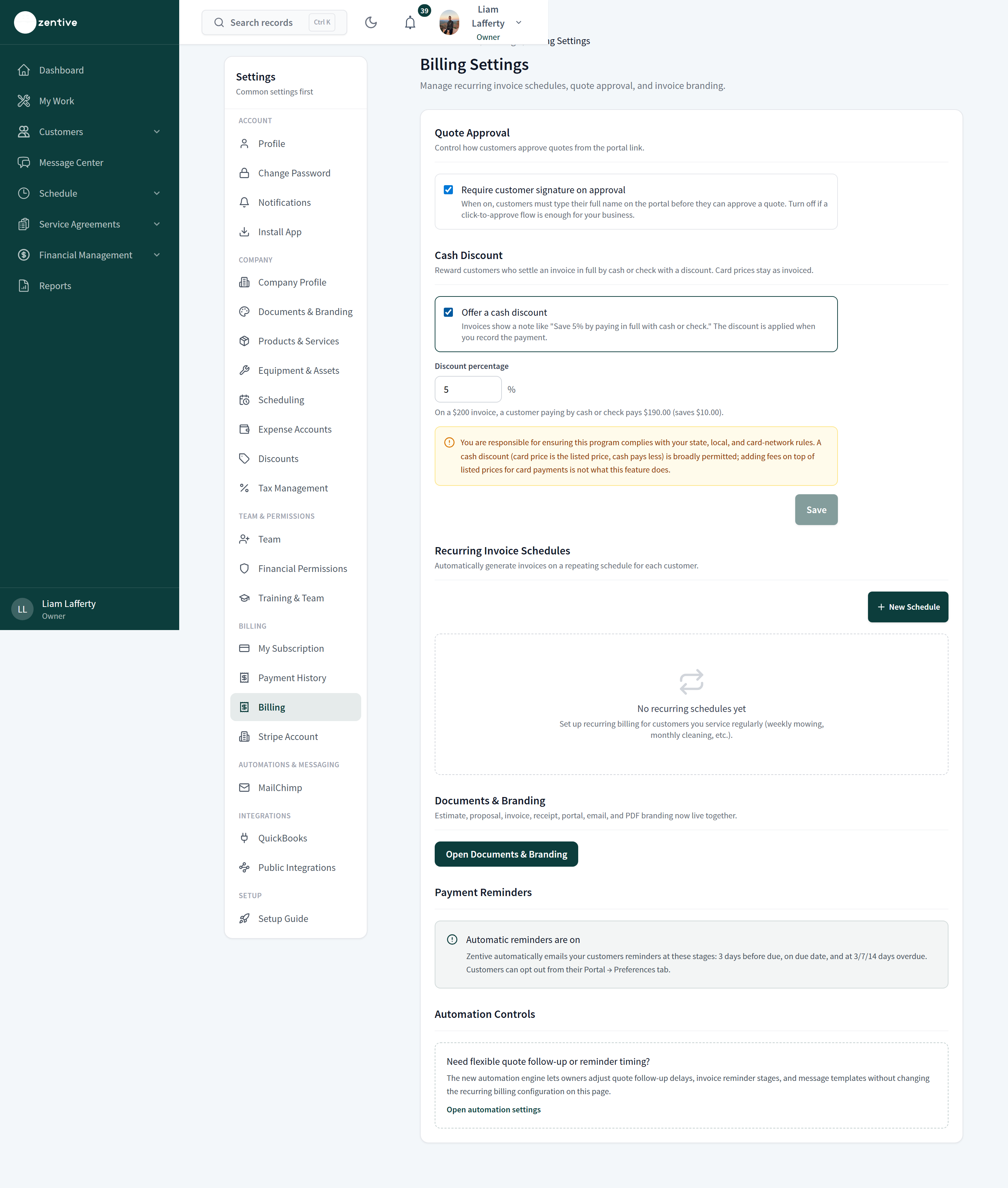
Settings → Billing → Payment Reminders shows the schedule: 3 days before due, on the due date, and 3, 7, and 14 days overdue, by email (and text if the customer allows). Wording lives in Message Center → Automated Messages → Payment reminders. Customers can opt out from Portal → Notifications.
- 2
Past due
When the due date passes with a balance, including partially paid invoices, the status flips to Past Due automatically and the invoice appears in the Past Due filter, the aging summary, and the dashboard's overdue total.
- 3
Manual nudge
Send invoice reminder from the invoice page sends one more reminder outside the schedule.
- 4
Autopay failures
If a saved-card charge fails, the invoice shows the retry timing with Retry now and Stop retries, and you get a Payment failed notification.
Was this helpful?
Contact Zentive support
Include your business name, account email, what you were trying to do, what happened instead, and a screenshot if possible. For billing, sync, or login issues, include the exact error message if shown.