Before you start
- Customer email addresses or phone numbers are accurate.
- The underlying jobs or invoices have correct dates.
What you'll do
You will turn on a small number of useful reminders, test them, and avoid duplicate customer messages.
Create a reliable automation
- 1
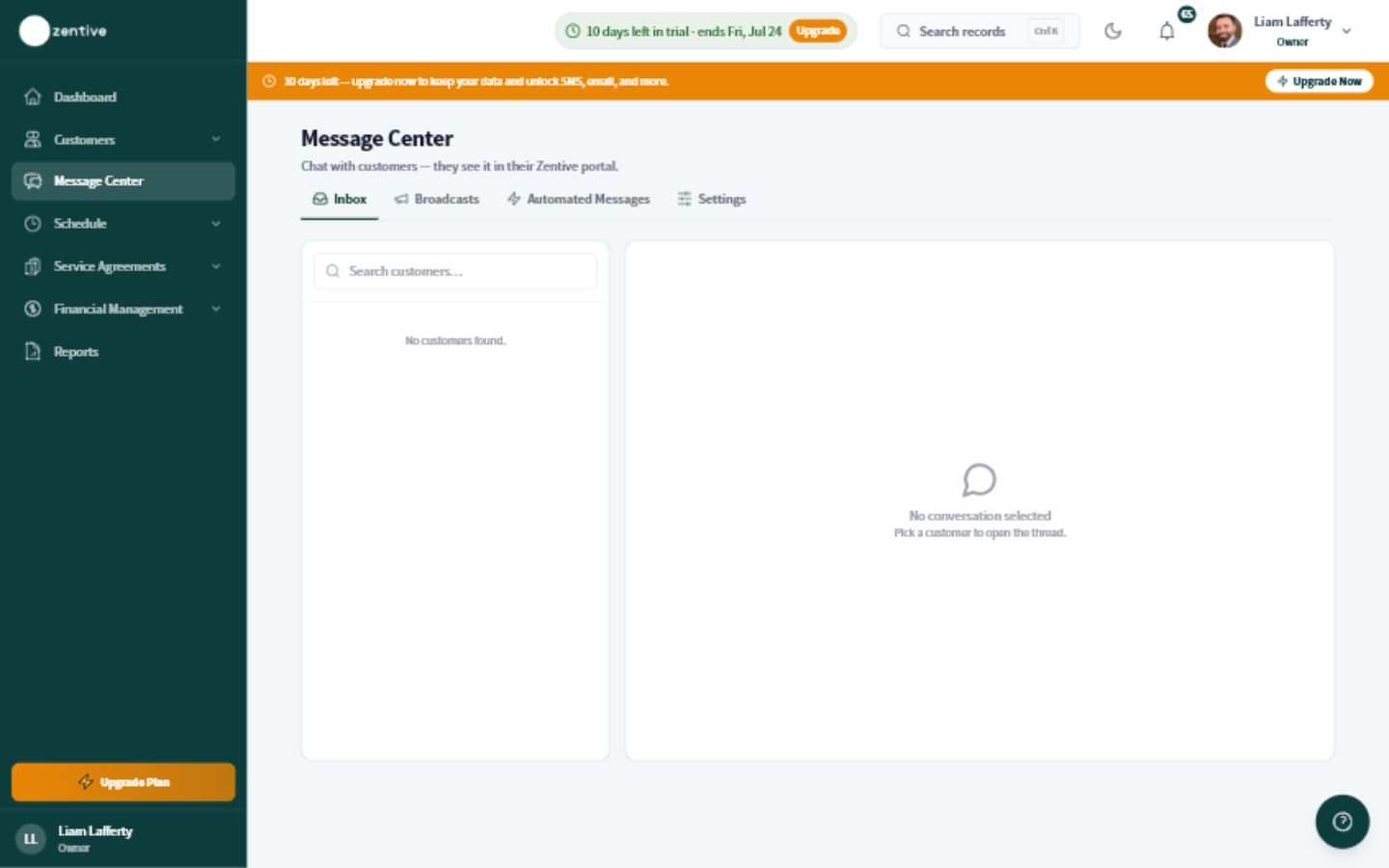
Open Automated Messages
Open Message Center, then choose Automated Messages. The Automations shortcut also brings owners to Message Center.
- 2
Choose one customer event
Start with a high-value event such as an upcoming appointment or an overdue invoice.
- 3
Set the timing
Choose a time that gives the customer enough notice. Review the business time zone before saving.
- 4
Review the message
Use plain language, identify your business, and tell the customer what to do next.
- 5
Test before enabling broadly
Use a safe test customer and confirm the reminder arrives once, at the expected time.
Avoid duplicate reminders
Check manual office procedures and other integrations before turning on a new automation. Customers should not receive the same reminder from two systems.
Was this helpful?
Contact Zentive support
Include your business name, account email, what you were trying to do, what happened instead, and a screenshot if possible. For billing, sync, or login issues, include the exact error message if shown.