What you'll do
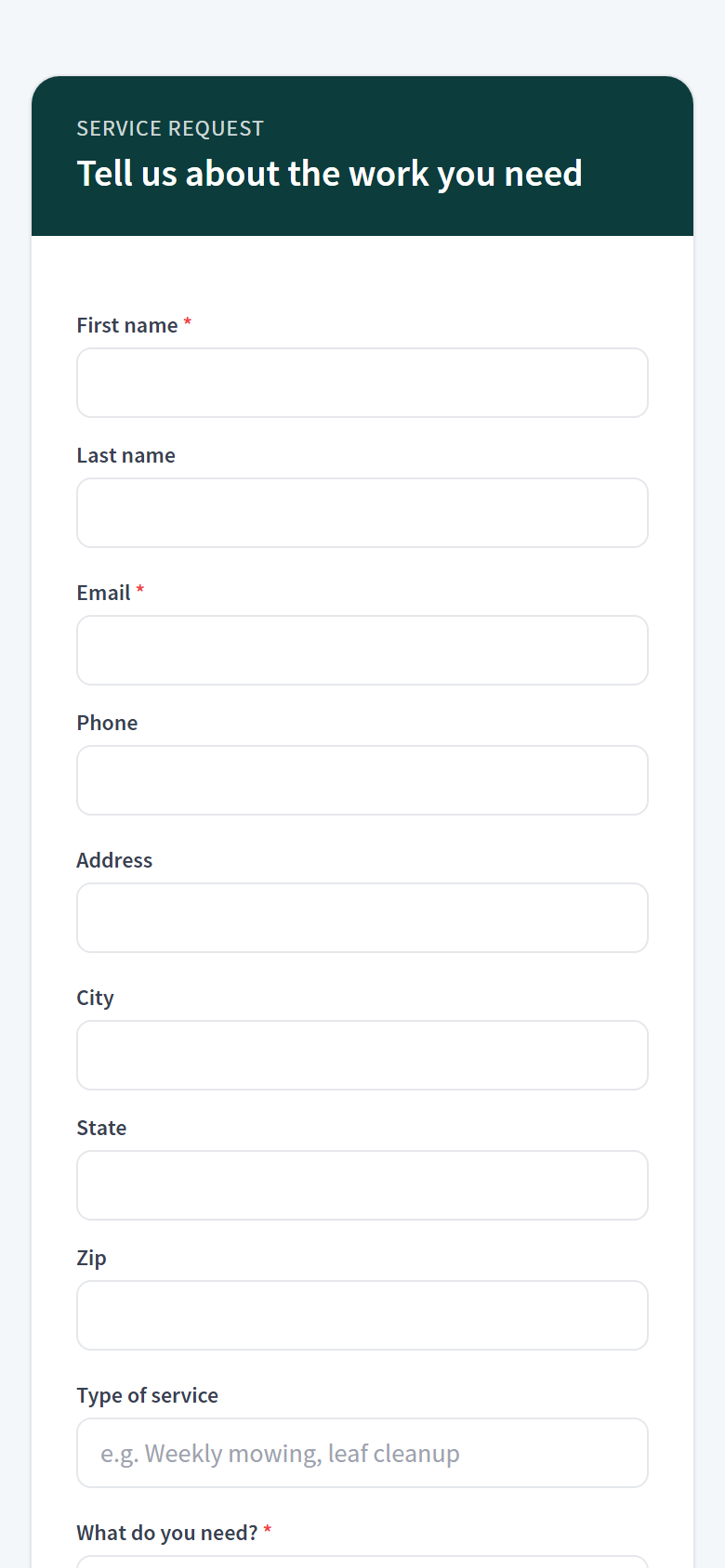
Every business gets a public request form that needs no login. Anyone who fills it in becomes a lead with source web_form, and you get a New lead submitted notification.
Do this
- 1
Open the share page
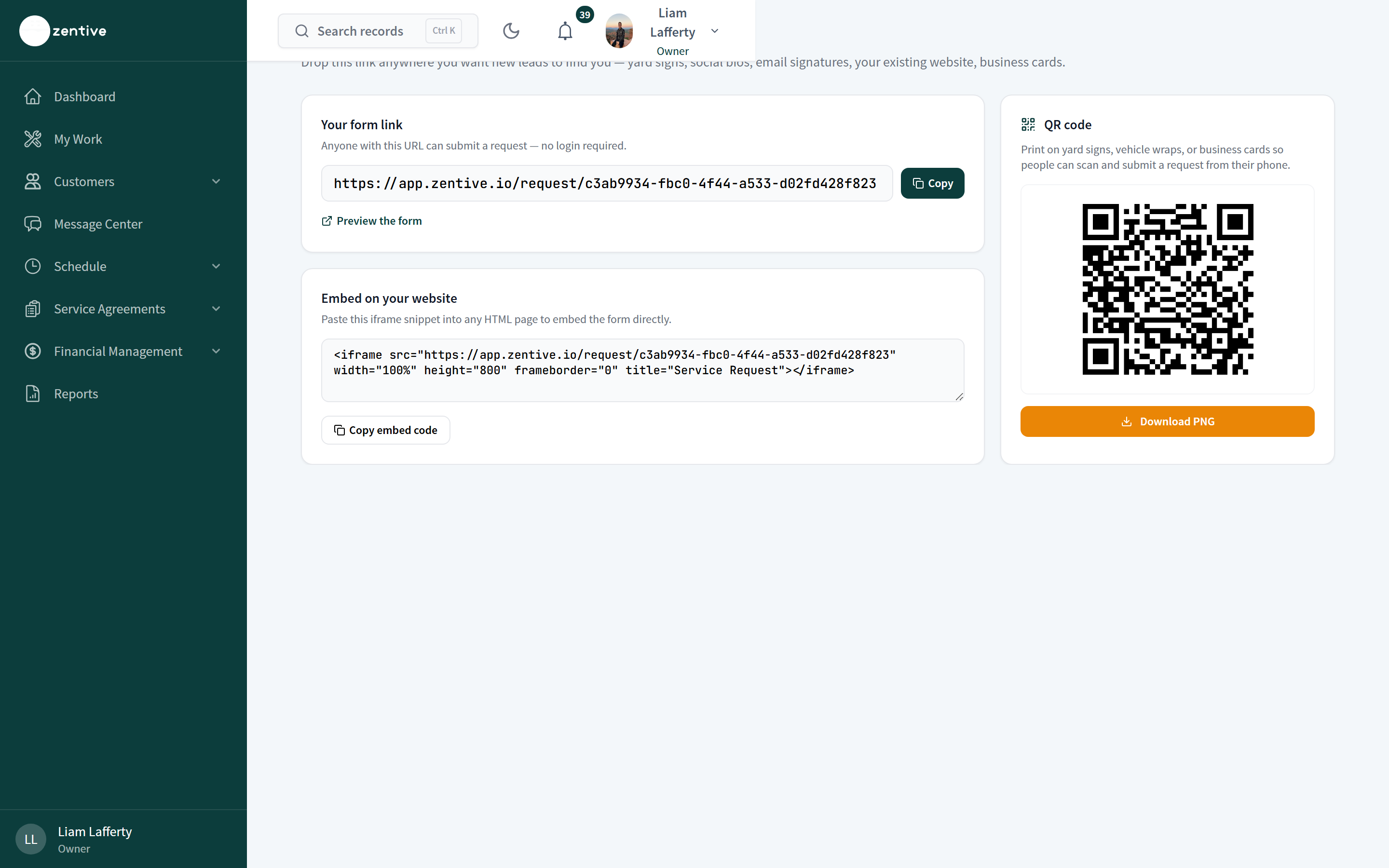
Go to app.zentive.io/settings/lead-form (also reachable from Lead Management → Add New Lead → Share form).
- 2
Your form link
Copy the URL for email signatures, social bios, and texts. Preview the form opens it as a visitor sees it.
- 3
Embed on your website
Copy embed code gives you an iframe snippet; paste it into any page of your site and the form appears inline.
- 4
QR code
Download PNG and print it on yard signs, vehicle wraps, door hangers, or business cards. Scanning opens the form on the phone.
After a request arrives
Customers → Lead Management shows it in the first stage with the requested service and message. Existing customers who use the form are matched by email so the request attaches to their record.
Was this helpful?
Contact Zentive support
Include your business name, account email, what you were trying to do, what happened instead, and a screenshot if possible. For billing, sync, or login issues, include the exact error message if shown.