Before you start
- Stripe is connected or you already tried to connect it.
- You can open Settings, then Stripe Account in Zentive.
What this usually means
Stripe may need business, bank, tax, owner, or identity information before charges or payouts are fully enabled. Requirements can change as payment volume, country rules, business type, or risk checks change.
Fastest fix first
- 1
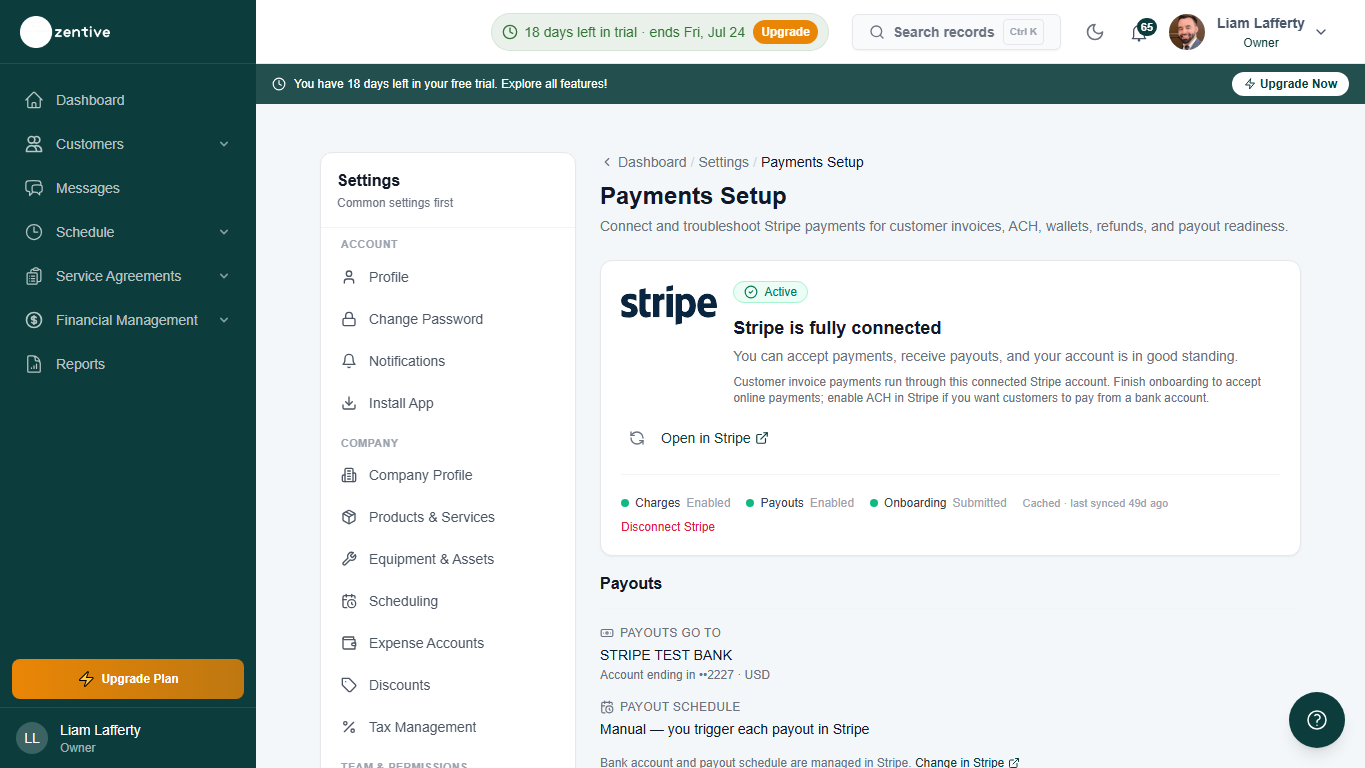
Open Settings, then Stripe Account
Check whether Charges, Payouts, and Onboarding show as enabled, disabled, pending, or restricted.
- 2
Open Stripe from Zentive
Use the Stripe button in Zentive so you land in the connected account that is actually processing Zentive payments.
- 3
Finish every required prompt
Complete missing business details, bank account details, tax information, representative information, or document upload requests.
- 4
Return to Zentive and refresh
After saving in Stripe, return to Zentive and refresh the Stripe Account page so the cached account status updates.
- 5
Check the invoice payment separately
A payout hold is different from a failed customer payment. If the customer payment failed, troubleshoot the invoice payment too.
Payments vs payouts
A customer payment can succeed while Stripe still delays payouts. That means the invoice may look paid, but the money has not reached your bank yet.
Was this helpful?
Contact Zentive support
Include your business name, account email, what you were trying to do, what happened instead, and a screenshot if possible. For billing, sync, or login issues, include the exact error message if shown.