Before you start
- Invoices have due dates and payment status is current.
What the report tells you
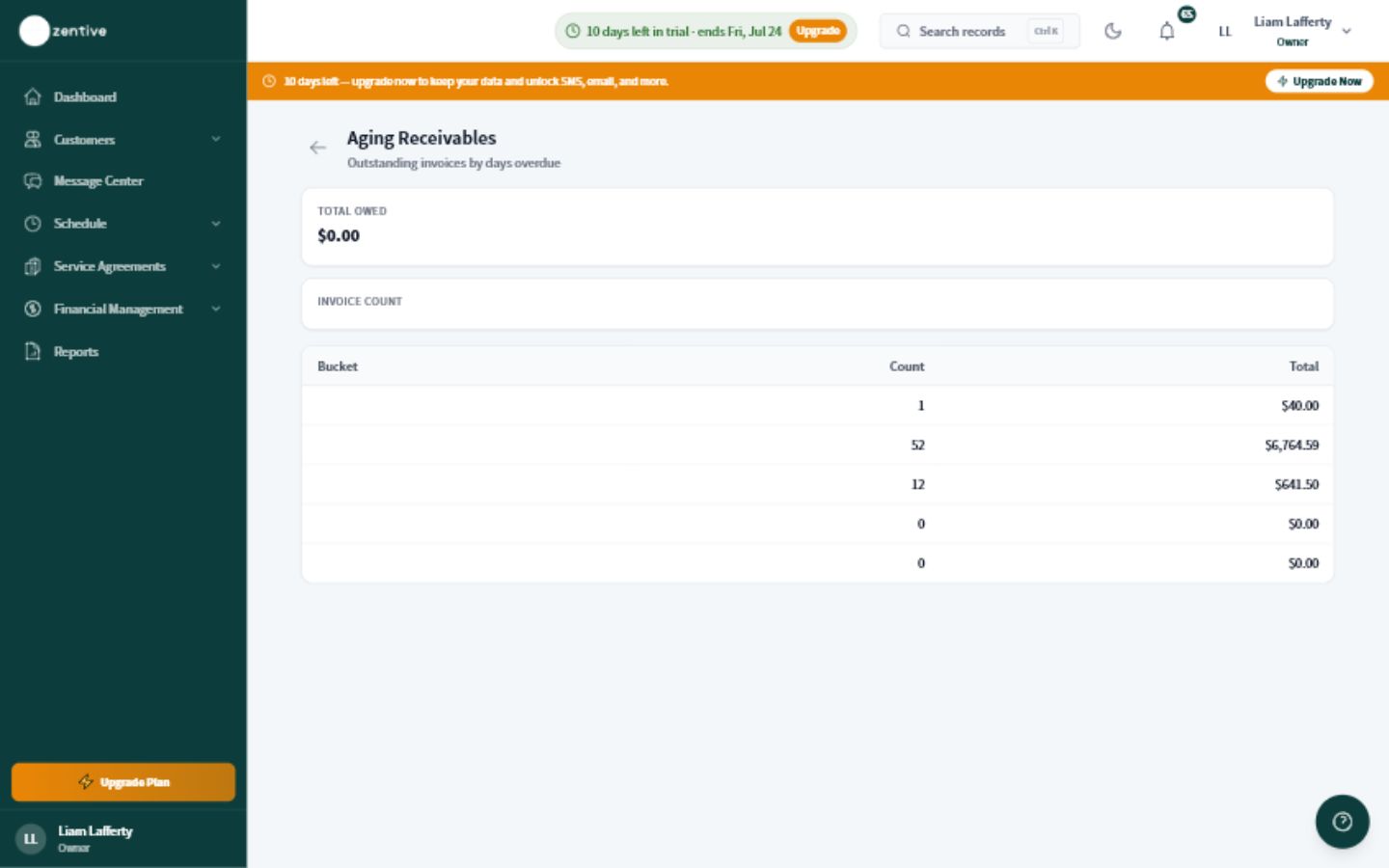
Aging groups unpaid balances by how long they have been outstanding, helping the office prioritize collection work.
Work the aging list
- 1
Open Aging Receivables
Go to Reports, then Aging Receivables.
- 2
Start with the oldest bucket
Review 90+ day and 61–90 day balances before newer invoices unless a customer situation requires otherwise.
- 3
Open the customer or invoice
Confirm the balance, due date, payment history, and any dispute or promise to pay.
- 4
Choose the next action
Send a reminder, record a missing payment, correct the invoice, or contact the customer directly.
- 5
Recheck the report
Refresh after corrections so the collection list reflects the current status.
Before contacting a customer
- The invoice was actually sent.
- The due date is correct.
- No payment is waiting to be recorded.
- No active dispute or credit explains the balance.
Was this helpful?
Still need help?
Contact Zentive support
Include your business name, account email, what you were trying to do, what happened instead, and a screenshot if possible. For billing, sync, or login issues, include the exact error message if shown.
Replies by emailLogin, billing, sync, and setup help
Email support