Before you start
- The employee already has a Zentive account.
- You are authorized to manage company access.
What you'll do
You will give each person only the financial visibility needed for their work.
Set financial access
- 1
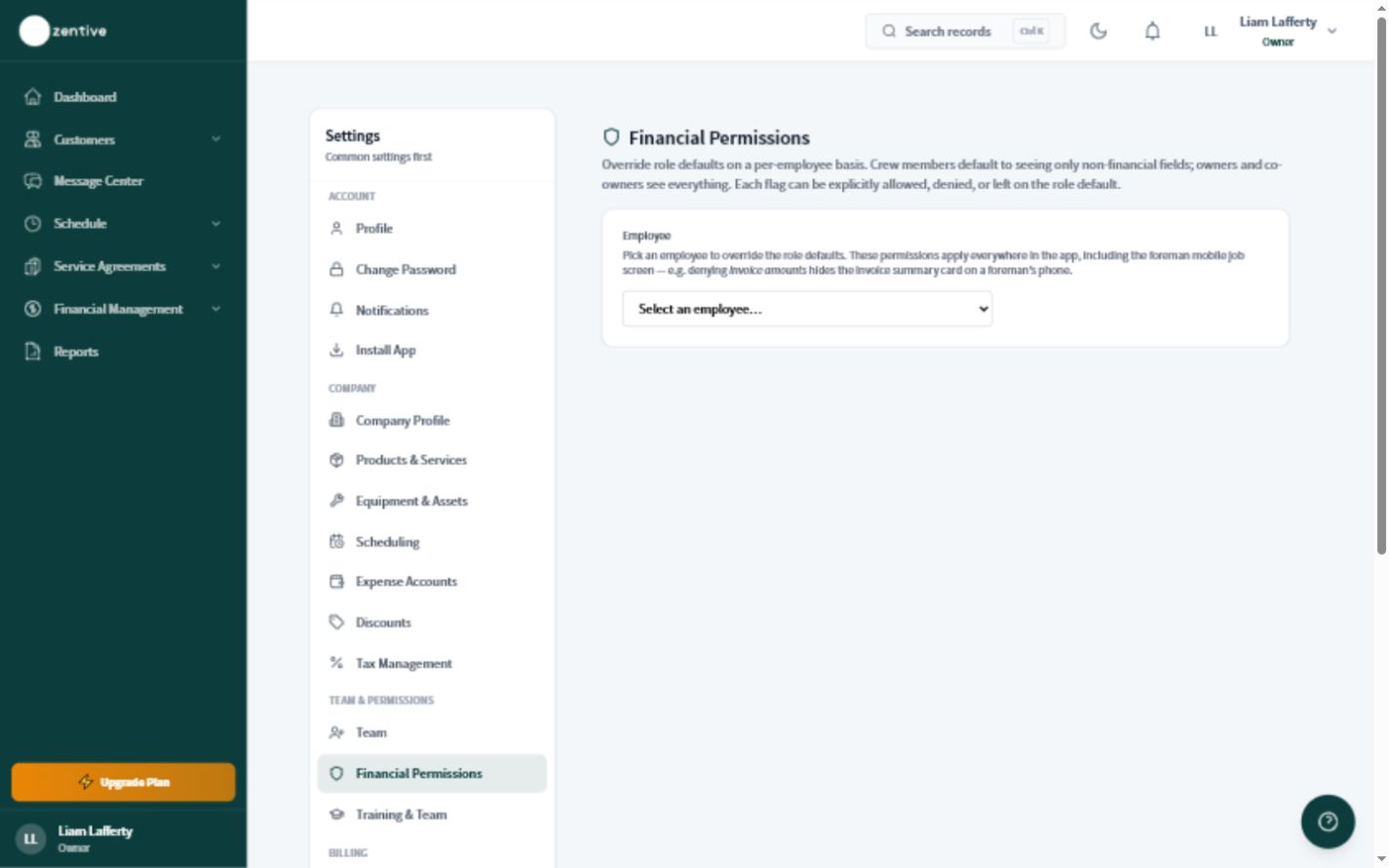
Open Financial Permissions
Go to Settings, then Financial Permissions.
- 2
Choose the employee or role
Select the person whose access you want to review. Confirm you are changing the correct account.
- 3
Choose what they can see
Allow only the invoice, payment, price, or report access needed for their responsibilities.
- 4
Save the changes
Save, then ask the employee to refresh or sign in again.
- 5
Verify from their view
Confirm sensitive totals are hidden where expected and required tools still work.
Review permissions when
- An employee changes roles.
- A seasonal worker leaves.
- A bookkeeper starts or stops work.
- A co-owner or manager no longer needs access.
Was this helpful?
Still need help?
Contact Zentive support
Include your business name, account email, what you were trying to do, what happened instead, and a screenshot if possible. For billing, sync, or login issues, include the exact error message if shown.
Replies by emailLogin, billing, sync, and setup help
Email support