What you'll do
Crews report problems from the job in the app (with an optional voice note) and can skip a route stop with a reason. Both arrive on the owner side as field issues. Jobs a crew could not close out cleanly collect on Crew Review. The dashboard shows a red banner with the open count until you deal with them.
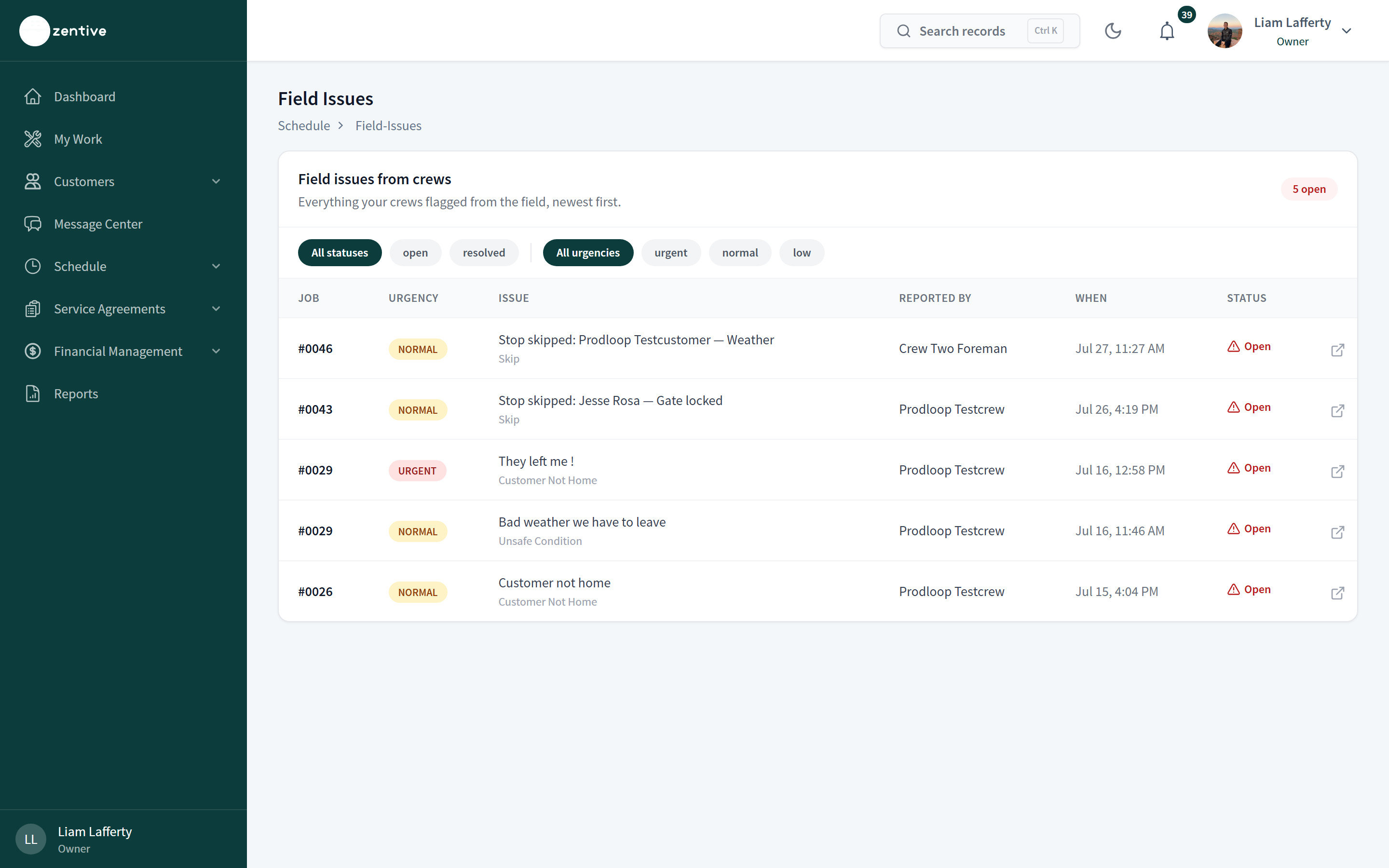
Field Issues
- 1
Open Schedule → Field Issues
Newest first, with filters for status (open, resolved) and urgency (urgent, normal, low). Each row shows the job, urgency, the issue and its category (Customer Not Home, Unsafe Condition, Skip, and so on), who reported it, and when.
- 2
Open the job
The arrow at the end of the row opens the job page, where the issue sits in the execution trail with the crew's note or voice recording.
- 3
Act, then resolve
Reschedule the visit, message the customer, or adjust the job, then mark the issue resolved so it leaves the open count.
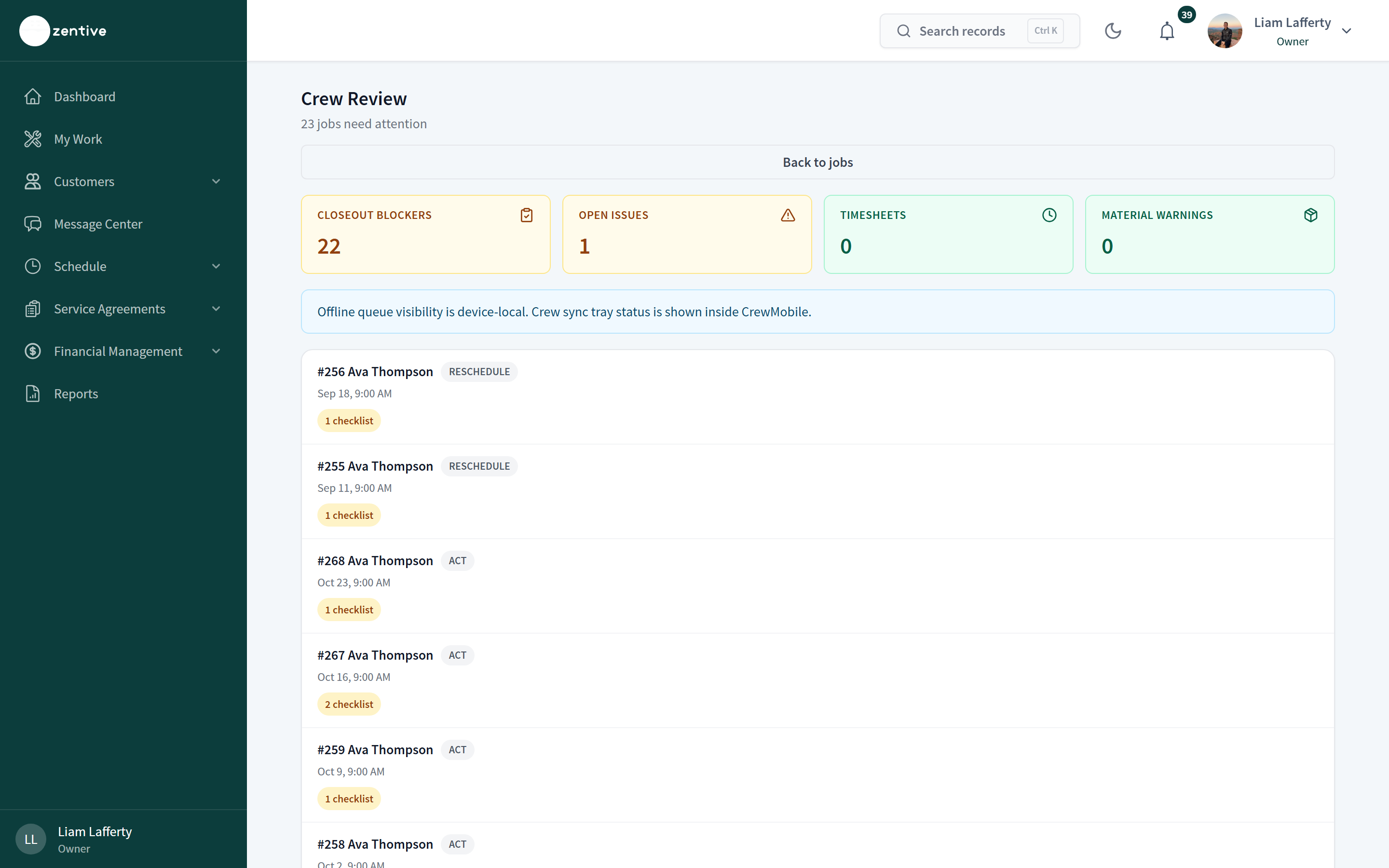
Crew Review
- 1
Open Schedule → Jobs → Crew Review
Four counters: Closeout blockers (jobs completed with required checklist items, photos, or materials missing), Open issues, Timesheets waiting, and Material warnings.
- 2
Work the list
Each job card shows its status, date, and what is outstanding (for example 1 checklist). Open the job to approve the closeout, ask the crew to finish, or clear the blocker yourself.
- 3
Offline note
Photos and notes a crew captured offline appear here only after their device syncs; the crew app's sync tray shows what is still pending on that device.
Was this helpful?
Contact Zentive support
Include your business name, account email, what you were trying to do, what happened instead, and a screenshot if possible. For billing, sync, or login issues, include the exact error message if shown.