Before you start
- Your role has access to the audit log.
What you'll find
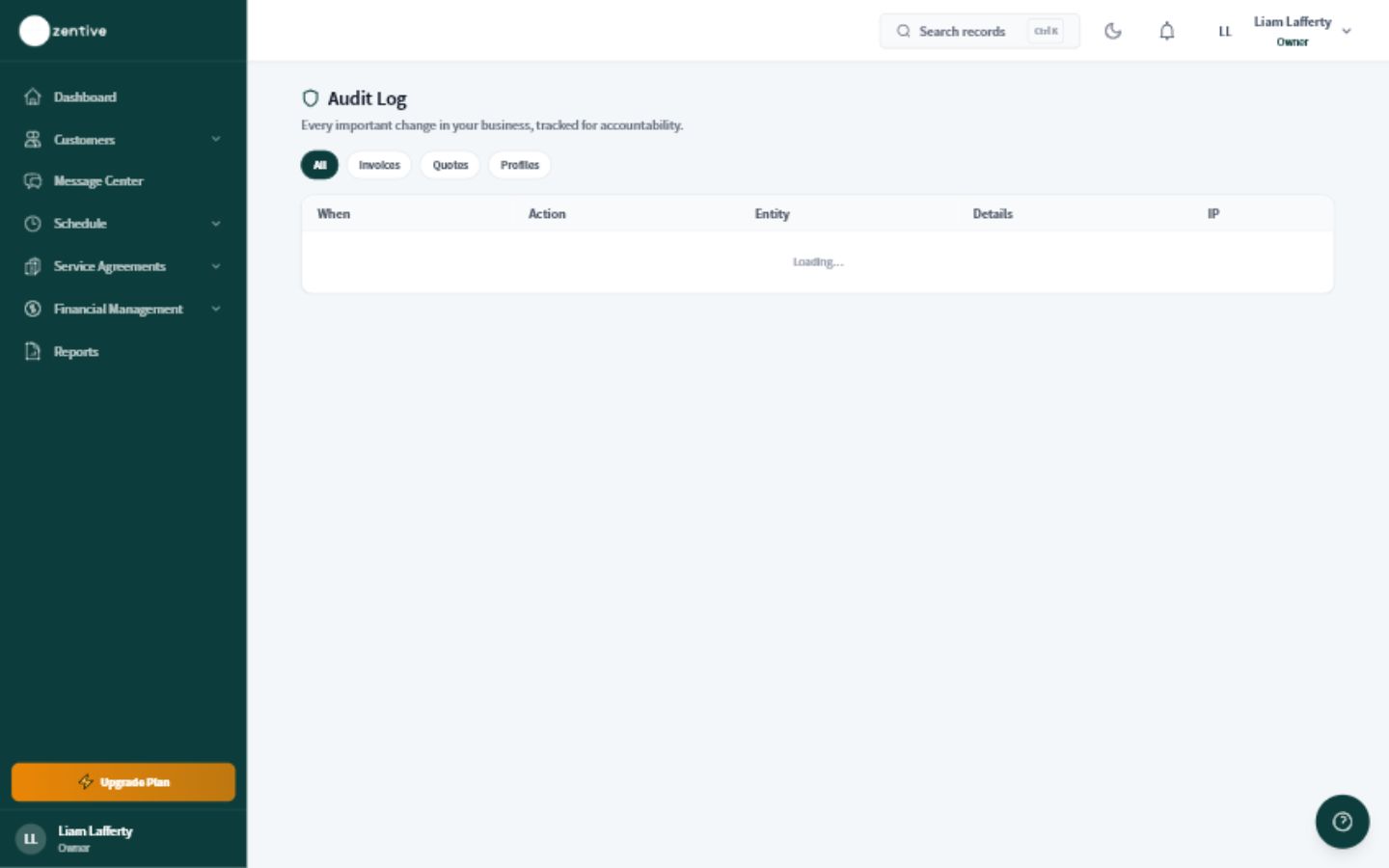
The audit log helps you confirm who performed an action, when it happened, and which part of Zentive was affected.
Find an important change
- 1
Open Audit Log
Choose Audit Log from the owner navigation when it is available to your role.
- 2
Narrow the date
Start with the day the problem was noticed, then widen the range only if needed.
- 3
Filter by person or action
Use the employee, record type, or action filters to reduce unrelated activity.
- 4
Open the matching entry
Review the actor, time, action, and affected record. Compare it with the current customer, job, invoice, or setting.
- 5
Document the resolution
If the change caused a customer or accounting issue, record how it was corrected before closing the investigation.
Was this helpful?
Contact Zentive support
Include your business name, account email, what you were trying to do, what happened instead, and a screenshot if possible. For billing, sync, or login issues, include the exact error message if shown.