Before you start
- The customer record has a valid phone number or email address.
What you'll do
You will find a conversation, send a clear reply, and leave the inbox in a state the rest of the office can understand.
Handle a customer message
- 1
Open Messages
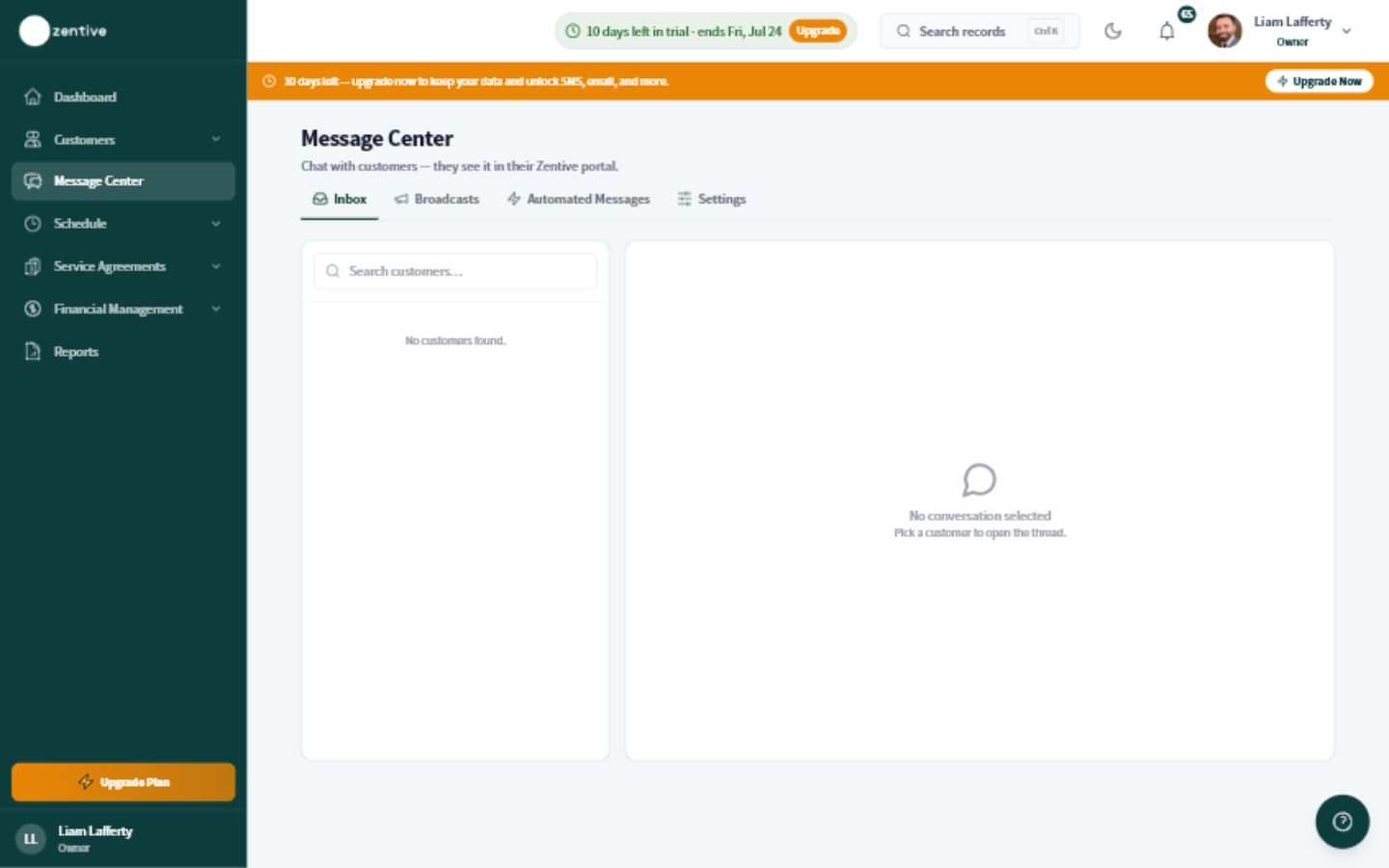
Choose Messages from the main navigation.
- 2
Open the customer conversation
Use the customer name or search to find the correct thread. Check the customer and job details before replying.
- 3
Write a useful reply
Answer the customer's question, include the next action, and avoid internal notes that the customer should not see.
- 4
Send and confirm
Send the message, then confirm it appears in the conversation with the correct delivery channel.
- 5
Leave a clear handoff
If someone else must act, add the job or customer note your team uses for internal follow-up.
Protect customer information
Do not send card numbers, passwords, or other sensitive information through ordinary messages.
Was this helpful?
Contact Zentive support
Include your business name, account email, what you were trying to do, what happened instead, and a screenshot if possible. For billing, sync, or login issues, include the exact error message if shown.