What you’ll learn
The office builds and sends routes; you drive them. Reassigned, rescheduled, or canceled jobs drop off automatically, so the list is always current.
Do this
- 1
Route tab (or Route on the Today card)
Routes are grouped All, Today, Tomorrow, Upcoming with stop counts and status (Viewed, In progress, Complete). Tap one.
- 2
Read the route
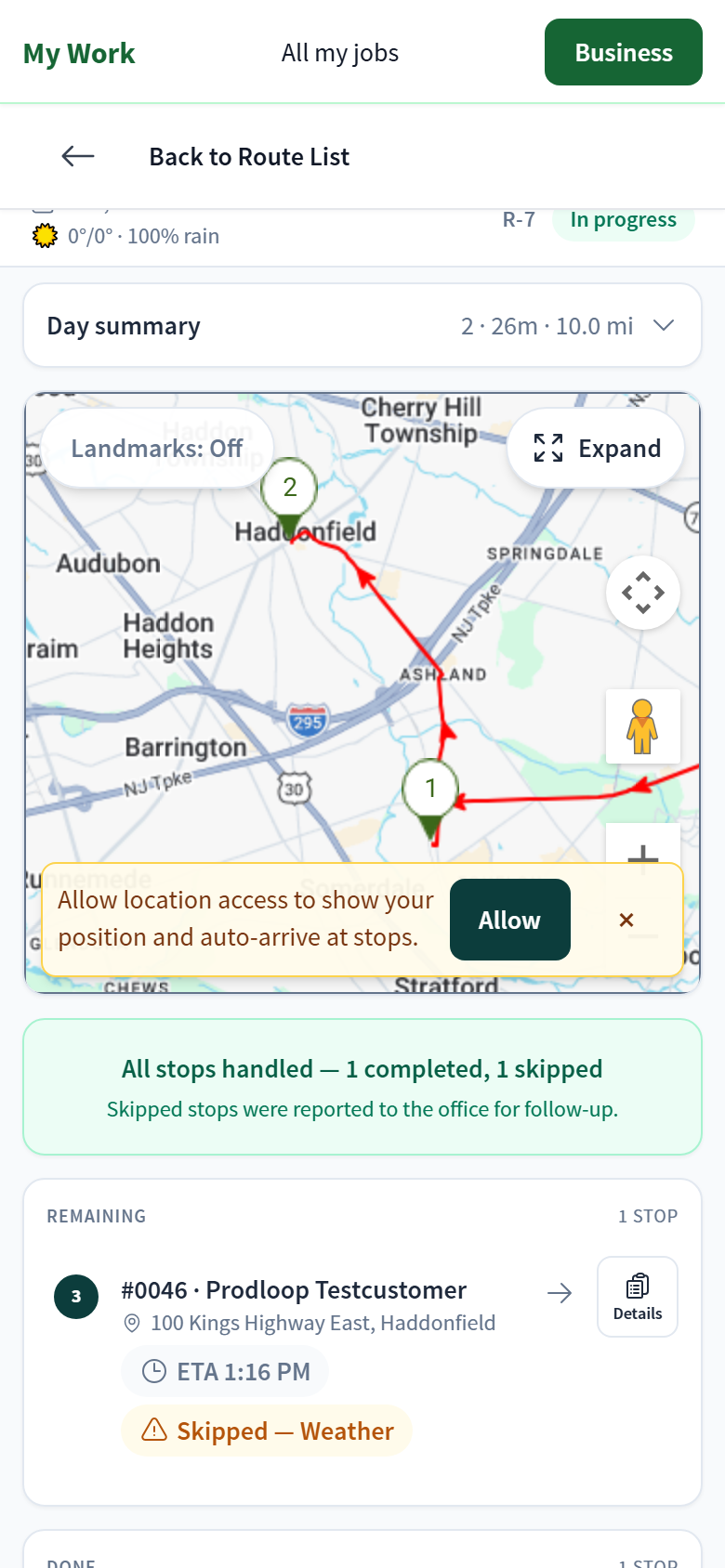
Day summary shows stops, drive time, and miles. The map has numbered pins and your position (tap Allow when asked for location; it lets Zentive auto-arrive you at stops). Landmarks toggles map labels; Expand goes full screen.
- 3
Next stop
The Remaining list shows the next stop with its ETA. Details opens the job. Navigate opens Google Maps or Apple Maps with the address.
- 4
Skip a stop
Skip stop asks for a reason (weather, customer not home, gate locked, other). The stop moves to Done as Skipped and the office is notified as a field issue.
- 5
Finish
When every stop is completed or skipped the route shows All stops handled.
Was this helpful?
Contact Zentive support
Include your business name, account email, what you were trying to do, what happened instead, and a screenshot if possible. For billing, sync, or login issues, include the exact error message if shown.