What you’ll learn
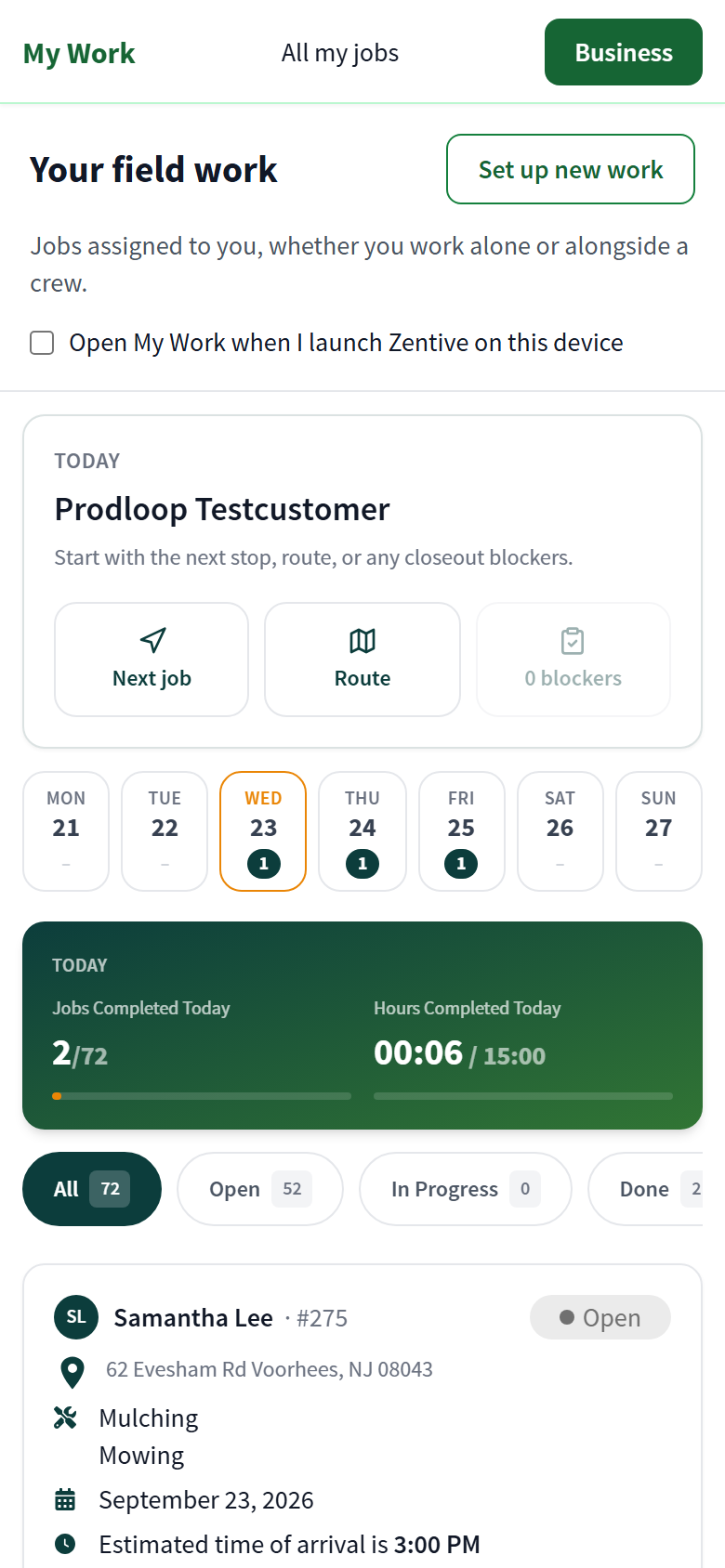
The Today screen (My Work) is the crew home. Everything you need for the shift is one tap away: the next job, the route, and anything blocking closeout.
Top to bottom
- Today card — the next customer, with Next job, Route, and blockers buttons.
- Week strip — a dot with the job count per day; tap a day to see it.
- Today counters — Jobs Completed Today and Hours Completed Today with progress bars.
- Filters — All, Open, In Progress, Done.
- Job cards — customer, job number, address, services, date, estimated arrival, and status. Tap to open.
- All my jobs (top) — search every job assigned to you across dates; works from the offline snapshot too.
- More — Time, Training, Agreements, Work History, Settings, Profile.
Owners see this too
Owners and co-owners who assign jobs to themselves get the same screen under My Work, with an Owner · My Work badge and a Business button to jump back to the office view.
Was this helpful?
Still need help?
Contact Zentive support
Include your business name, account email, what you were trying to do, what happened instead, and a screenshot if possible. For billing, sync, or login issues, include the exact error message if shown.
Replies by emailLogin, billing, sync, and setup help
Email support