What you’ll do
Issues go straight to Schedule → Field Issues on the office side with a red banner on the owner’s dashboard, so you do not need to call.
Do this
- 1
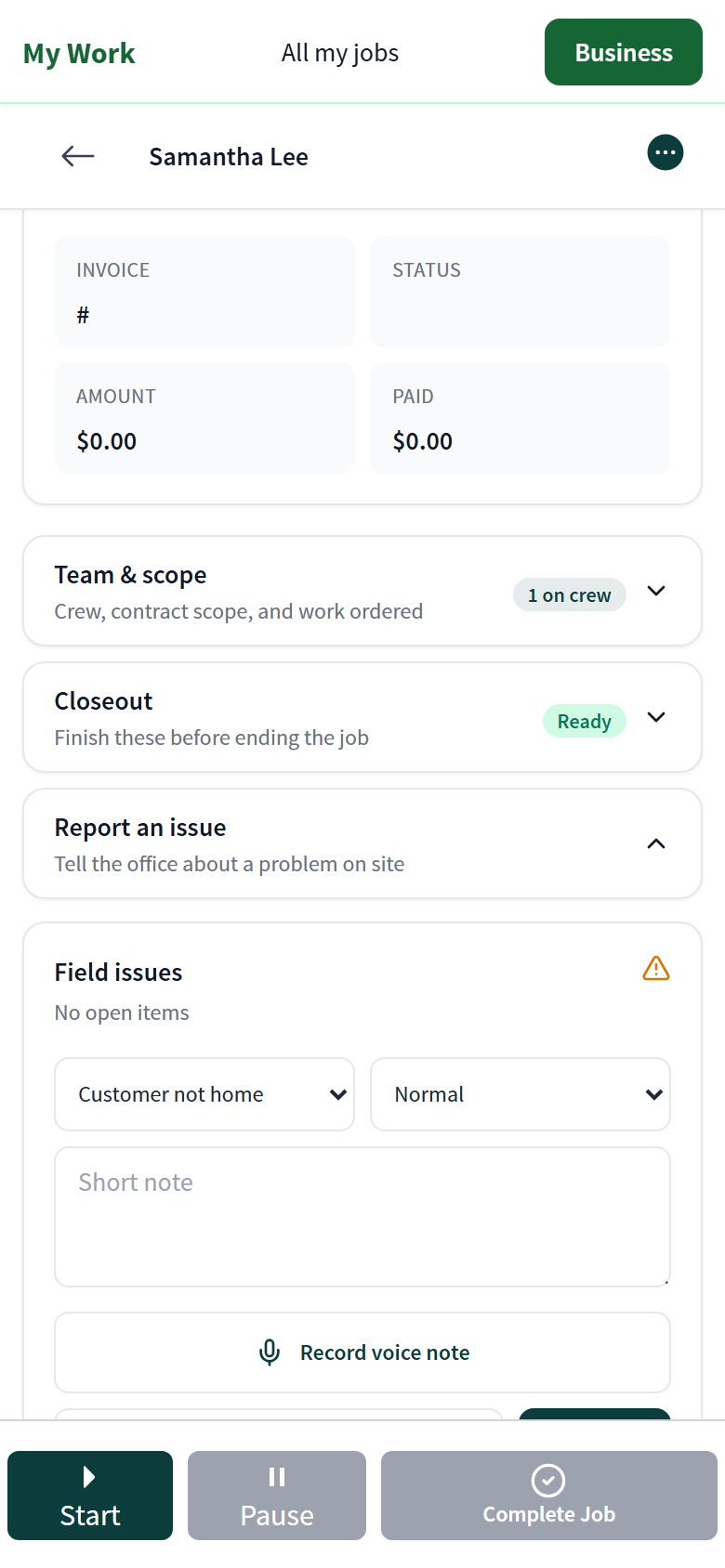
Open the job → Report an issue
Pick the type (Customer not home, Unsafe condition, Gate locked, Skip, Other) and the urgency (Urgent, Normal, Low).
- 2
Describe it
Type a short note, or tap Record voice note and talk; both are attached to the job.
- 3
Send
The issue appears under Field issues on the job with its status. The office resolves it and may reschedule or message the customer.
Was this helpful?
Still need help?
Contact Zentive support
Include your business name, account email, what you were trying to do, what happened instead, and a screenshot if possible. For billing, sync, or login issues, include the exact error message if shown.
Replies by emailLogin, billing, sync, and setup help
Email support